

USB-C Hub Buying Guide: Ports, Power and Display Compatibility
A USB-C hub looks simple: one cable in, a handful of ports out. The trouble is that the oval USB-C connector tells you almost nothing about what the port behind it can do. The same shape can carry USB 2.0 data at 480 Mbps, a 4K monitor, or a 40 Gbps Thunderbolt link — and a hub can only pass on what your laptop’s port already supplies. This guide shows how to identify your laptop’s port, list what you need to connect, and check video, power and bandwidth before you buy, so the hub you choose actually works with the laptop you own.

Quick Decision
Check the laptop port first: look for a lightning-bolt icon next to the port (Thunderbolt), or check the laptop’s spec page for “Thunderbolt”, “USB4” or “DisplayPort Alt Mode”. One monitor and light devices: a basic bus-powered USB-C hub is usually enough. Two monitors or fast storage: you need a Thunderbolt or USB4 dock, and the laptop must support it — a hub cannot add video output the laptop never had. Power: the hub’s pass-through wattage to the laptop should be at least equal to your laptop’s charger, because the hub keeps some power for itself. Mac users: check your chip’s native display limit first — a base M1 or M2 MacBook supports one external display, and no hub changes that.
How this guide was put together. LanPicks does not test hubs hands-on. The port, display and power figures in this guide come from the standards bodies’ published documentation (USB-IF, Intel, VESA) and from Apple’s own support pages, checked on 12–13 November 2026, as reported in the sources below. Where a figure comes from a maker’s page — for example a hub’s pass-through wattage — it is attributed to that maker. Speeds are the link’s rated maximum, not a measured file-copy time. The hero image is an AI-generated editorial illustration; the port diagram is an original conceptual drawing, not a measurement. See our Editorial Policy.
On this page
Identify Your Laptop Port
Start with the laptop, not the hub. Every USB-C port on a laptop looks the same, but the port behind the shape can be one of several things: a plain USB 3.2 port, a USB4 port, or a Thunderbolt port. The fastest way to tell is the icon next to the port — a small lightning bolt means Thunderbolt. If there is no icon, check the laptop’s specification page or the manufacturer’s support site for the exact model, and search it for “Thunderbolt”, “USB4” or “DisplayPort Alt Mode”. If the spec only says “USB-C data” or “USB-C charging”, treat video output as unproven until the spec says otherwise.
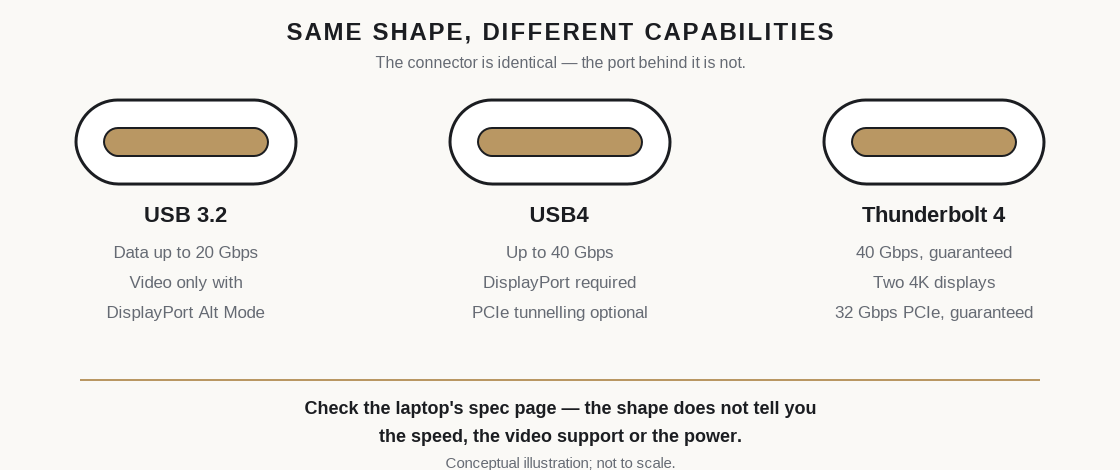
The distinction that matters most for buying is between a maximum and a minimum. USB4 is a USB-IF standard with performance tiers: a USB4 host supports 20 Gbps operation and optionally 40 Gbps, and features like PCIe tunnelling — the mechanism docks and external graphics enclosures depend on — are optional, so one USB4 laptop may support them and another may not. Thunderbolt is a certification programme, so it sets floors: every Thunderbolt 4 port must deliver 40 Gbps, 32 Gbps of PCIe, and support for two 4K displays or one 8K display. That is why a Thunderbolt 4 dock is the more predictable choice for a serious desk, while a USB4 hub’s capabilities depend on the individual laptop and hub.
List Required Devices
Before you compare hubs, write down everything the hub has to connect: monitors (how many, what resolution and refresh rate), keyboard, mouse, external drive, Ethernet, card reader, headset, and the laptop’s own charger. Then sort the list into what must work at the same time and what only plugs in occasionally. A hub bought for a keyboard and one monitor is a different purchase from a hub bought for two 4K monitors, a fast external SSD and wired networking — and the second one is where most buying mistakes happen, because the buyer counted ports instead of checking bandwidth and video support.
The hub also has to live somewhere. A small bus-powered hub suits a bag: it adds the ports a thin laptop removed — HDMI, USB-A, Ethernet, a card reader — and draws its power from the laptop. A docking station suits a fixed desk: it stays plugged in, it has its own power supply, and it becomes the centre of the setup. If the laptop moves between home and office every day, buy the portable hub; if it sits on one desk, buy the dock. Our clean gaming desk setup guide shows how to plan the desk around the hub once you have chosen it.
Verify Video Support
Video is the check most buyers skip, and the one that causes the most returns. A hub’s HDMI or DisplayPort jack does not create a video signal — it passes the signal from your laptop to the monitor. If the laptop’s USB-C port does not support video, even a high-quality hub cannot make the monitor work. What carries the video is DisplayPort Alt Mode, a VESA standard that lets a USB-C connector and cable carry a DisplayPort signal, USB data and power at the same time. Your laptop’s port needs to support DisplayPort Alt Mode, Thunderbolt, or USB4 with video output — check the spec page for one of those phrases before you buy.
Swipe to compare all columns →
| Port type | Data speed | Video | Power |
|---|---|---|---|
| USB 3.2 | 5–20 Gbps | Only with DisplayPort Alt Mode | Varies by port |
| USB4 | 20–40 Gbps (v2: 80 Gbps) | DisplayPort required; at least one display | Varies; USB PD 3.1 up to 240 W |
| Thunderbolt 4 | 40 Gbps, guaranteed | Two 4K or one 8K, guaranteed | Up to 100 W laptop charging |
| Thunderbolt 5 | 80 Gbps, up to 120 Gbps one way | Two 6K | At least 140 W, up to 240 W |
On a Mac, the display limit is set by the chip, not by the hub. A hub can route several display connections through one port, which simplifies cabling, but the Mac still supports the same total number of displays. Table 2 is the native limit per chip — “native” means macOS sends video directly through the Mac’s built-in display hardware, without a software workaround.
Swipe to compare all columns →
| Mac chip (base models unless noted) | Native external displays | Condition |
|---|---|---|
| M1 | 1 | Up to 6K at 60 Hz, alongside the built-in display |
| M2 | 1 | Up to 6K at 60 Hz, alongside the built-in display |
| M3 | 1 with the lid open; 2 with the lid closed | Primary up to 6K at 60 Hz (or 4K at 144 Hz); secondary up to 5K at 60 Hz (or 4K at 100 Hz); lid closed only |
| M4 / M5 | 2 | With the built-in display active |
| Pro (M1 Pro – M5 Pro) | 2 | Up to 6K at 60 Hz each |
| Max (M1 Max – M5 Max) | 3–4 | Depends on the model and port combination — check Apple’s per-model page |
Two Apple figures in that table were read directly from Apple’s own pages. The MacBook Air with M1 lists one external display up to 6K at 60 Hz alongside the built-in display, on two Thunderbolt / USB 4 ports that support charging, DisplayPort, Thunderbolt 3 up to 40 Gb/s, USB 4 up to 40 Gb/s and USB 3.1 Gen 2 up to 10 Gb/s. For the M3, Apple’s support page “Use dual monitors with your MacBook Air and MacBook Pro with M3 chip” states that two external displays work simultaneously only when the lid is closed — primary up to 6K at 60 Hz (or 4K at 144 Hz), secondary up to 5K at 60 Hz (or 4K at 100 Hz) — and that opening the lid makes the secondary display go dark or disconnect. It also requires an external keyboard and mouse or trackpad, and macOS Sonoma 14.3 or later on the Air (14.6 or later on the Pro).
Understand Power Pass-Through
A hub with a USB-C Power Delivery input does not pass all of its input wattage to the laptop — it keeps some power for itself to run its own ports. Anker’s 555 hub, for example, lists 100 W of PD input and 85 W of output to the laptop on its official page; Belkin’s 11-in-1 dock lists pass-through charging up to 100 W, minus 15 W for the dock’s operation. So the number to compare is the hub’s stated output to the laptop, not its input. Check your laptop’s own charger wattage — it is printed on the charger — and choose a hub or dock that supplies at least that much to the laptop. A hub that delivers less than the charger will still charge the laptop, but slowly, and it may not keep up while the laptop is working hard.
Two more power notes. First, USB Power Delivery 3.1 (Extended Power Range) reaches 240 W, which is why some newer docks advertise higher charging — but the laptop, the dock and the cable all have to support the same level, and the laptop’s own charging limit is what matters: a laptop that charges at 65 W gains nothing from a 140 W dock. Second, bus-powered hubs draw their power from the laptop, so every device plugged into them draws from the laptop’s battery; a hub with its own power supply is the better choice for a desk that runs external drives and several accessories at once.
Shared Bandwidth and Operating-System Limits
Everything plugged into a hub shares one upstream link to the laptop. On a basic hub, video and USB data share the connection — a common arrangement uses half the lanes for a 4K monitor and leaves the rest for 10 Gbps USB — so a cheap hub running a 4K screen, Ethernet and a fast drive at the same time can run out of bandwidth. That is the practical reason a two-monitor, fast-storage desk needs a Thunderbolt or USB4 dock: the 40 Gbps link leaves room for video and data at once. If a device feels slow on a hub, check the link first — a fast external SSD on a 10 Gbps port will never reach the speed printed on its box, and no hub setting changes that.
The operating system sets a second limit. On many Windows laptops, two displays can work through MST (Multi-Stream Transport) from a single DisplayPort Alt Mode port, but the same dock may only mirror on macOS — the two systems handle multi-display output differently, so a dock that drives two extended screens on Windows is not guaranteed to do the same on a Mac. DisplayLink docks are the usual workaround for base M1, M2 and M3 Macs: they send video over USB using a driver, which bypasses the chip’s native display limit, but the trade-offs are real — refresh-rate caps, possible latency, and streaming services that refuse to play over the software display. Treat DisplayLink as a workaround with costs, not as a free second monitor.
The cable matters as much as the hub. Use the cable that came with the hub or dock, and check that any replacement cable is rated for the speed and video you need — a USB 2.0 cable in a Thunderbolt port still delivers USB 2.0 speed. For 40 Gbps operation, use a certified cable; for longer runs, check the maker’s length guidance, because passive cables lose the top speed beyond a short length.
Compatibility Worksheet
Work through this table before you buy. If any row has no answer, find it on the laptop’s spec page or the hub’s product page first — an unanswered row is where the return usually comes from.
Swipe to compare all columns →
| Check | What to look for | Your answer |
|---|---|---|
| Laptop port | Thunderbolt 4/5, USB4, or plain USB-C? Does it support video (DisplayPort Alt Mode)? | — |
| Displays | How many, what resolution and refresh rate? What is the chip’s native limit? | — |
| Power | Laptop charger wattage? Hub pass-through wattage to the laptop? | — |
| Devices | USB-A, Ethernet, card reader, audio — which must work at the same time? | — |
| Operating system | Windows (MST may work) or macOS (native display limit applies)? | — |
| Cable | The cable that came with the hub? Rated for the speed and video you need? | — |
FAQ
Will any USB-C hub work with my laptop?
No. A hub can only pass on what your laptop’s port supplies. Check the port first: if the spec page does not mention DisplayPort Alt Mode, Thunderbolt or USB4, treat the port as data and charging only until proven otherwise, and do not expect a hub’s HDMI port to produce a monitor signal.
Why does my second monitor mirror instead of extending?
Usually one of two reasons. On a Mac, the chip’s native display limit may have been reached — a base M1 or M2 MacBook supports one external display, and a hub does not raise that limit. On Windows, the dock may be using a single video stream for both outputs; check whether the dock and the laptop support MST, and whether the monitors are connected to separate video outputs on the dock.
How much charging power do I need from the hub?
At least as much as your laptop’s charger supplies. Check the wattage printed on the charger, then check the hub’s stated pass-through output to the laptop — not its input, because the hub keeps some power for itself. If the hub delivers less, the laptop charges slowly and may lose charge under heavy use.
Can a hub make my external SSD faster?
No. The SSD’s speed is limited by the slowest link in the chain: the laptop’s port, the cable, and the hub. A drive rated for 40 Gbps on a 10 Gbps port runs at 10 Gbps at most. If fast storage matters, the whole chain — port, cable and hub — needs to be rated for it.
Do I need Thunderbolt, or is USB4 enough?
It depends on what you connect. For one monitor, a keyboard and a card reader, a basic USB-C hub is usually enough. For two monitors, fast storage and wired networking at the same time, Thunderbolt 4 is the more predictable choice because its minimums are guaranteed; a USB4 hub can do the same job only if both the laptop and the hub implement the faster optional features.
What if my laptop has no USB-C port at all?
Then a USB-C hub is the wrong purchase. A hub needs a USB-C host port to work; older laptops with only USB-A ports need a different kind of adapter, and a USB-C hub cannot be connected through a simple shape-changing adapter and expected to carry video or power delivery.
Conclusion
Identify the laptop’s port, list what has to connect, and check video, power and bandwidth against the hub’s stated figures before you buy. The connector shape tells you nothing on its own — the spec page does. Once the hub is chosen, the cables still have to live somewhere tidy: our cable management guide shows how to route them without drilling. For the rest of the desk, our clean gaming desk setup guide shows how to plan the whole workspace around the hub you just picked.
Sources
- Apple — MacBook Air (M1, 2020) Tech Specs (two Thunderbolt / USB 4 ports; one external display up to 6K at 60 Hz; 30 W USB-C Power Adapter)
- Apple — Use dual monitors with your MacBook Air and MacBook Pro with M3 chip (two external displays only with the lid closed; primary up to 6K 60 Hz or 4K 144 Hz; secondary up to 5K 60 Hz or 4K 100 Hz; macOS Sonoma 14.3+ Air / 14.6+ Pro)
- TechyCluster — USB-C Docks and Hubs Explained: USB4, Thunderbolt 5, Specs (port identification; Thunderbolt 4/5 minimums; pass-through rule; USB PD 3.1 240 W)
- Byber App — USB-C Hub vs Docking Station: 7 Laptop Checks (DisplayPort Alt Mode; Anker 555 100 W in / 85 W out; Belkin 100 W minus 15 W; Intel Thunderbolt 4 40 Gbps and two 4K 60 Hz displays)
- PKH Computing — USB-C vs Thunderbolt Docks: Compatibility Guide (MST on Windows vs mirroring on macOS; USB4 sharing one high-speed link)
- Lention — Does Your USB-C Port Support Video Output? (port check methods; a hub passes the laptop’s video signal, it does not create one)
- CircuitryWired — USB4 vs Thunderbolt: What a USB-C Port Actually Promises (USB4 20 Gbps required, 40 Gbps optional; PCIe tunnelling optional; DisplayPort Alt Mode required)
- TechReviewAdvisor — What Is USB4? The Specs and Speeds Explained (USB4 20/40 Gbps; Version 2.0 80 Gbps, 120 Gbps asymmetric; Thunderbolt 4 mandates PCIe tunnelling and dual 4K)
- Macworld — How to connect multiple monitors to MacBooks (M1, M2, M3, M4 & M5) (base M1/M2 one display; M3 two with lid closed; DisplayLink workaround and its trade-offs)
- UGREEN — How Many External Monitors Can a MacBook Support? (native limits by chip; a hub does not increase native support)
Related Posts
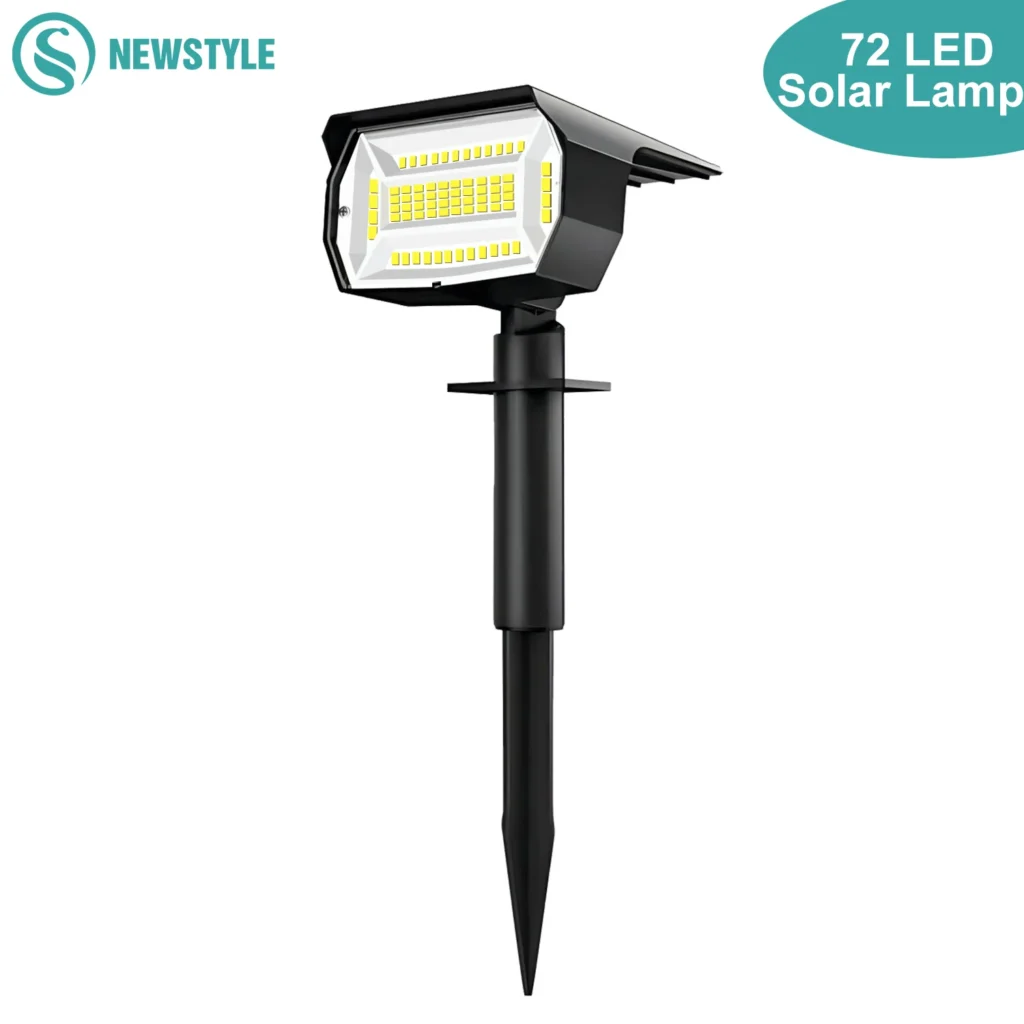
This guide covers one AliExpress listing: a 72-LED solar landscape spotlight, warm white, in the 1-piece variant. It is a buyer-check guide, not a hands-on review — LanPicks has not tested, owned, or measured this light. The direct answer is short: the listing states a solar-powered spotlight with 72 LED beads, a 1500mAh battery, 3.7 […]

This guide covers one AliExpress listing: a SHAHE stainless steel digital caliper, in the 0-150 mm (about 0-5.91 in) range variant. It is a buyer-check guide, not a hands-on review — LanPicks has not tested, owned, or measured with this caliper. The direct answer is short: the listing states a 0-150 mm stainless caliper with […]

This guide covers one AliExpress listing: a vintage racing leather watch strap, in the light brown, 18 mm (about 0.71 in) width variant. It is a buyer-check guide, not a hands-on review — LanPicks has not tested, owned, or measured this strap. The direct answer is short: the strap is a perforated leather racing-style band […]
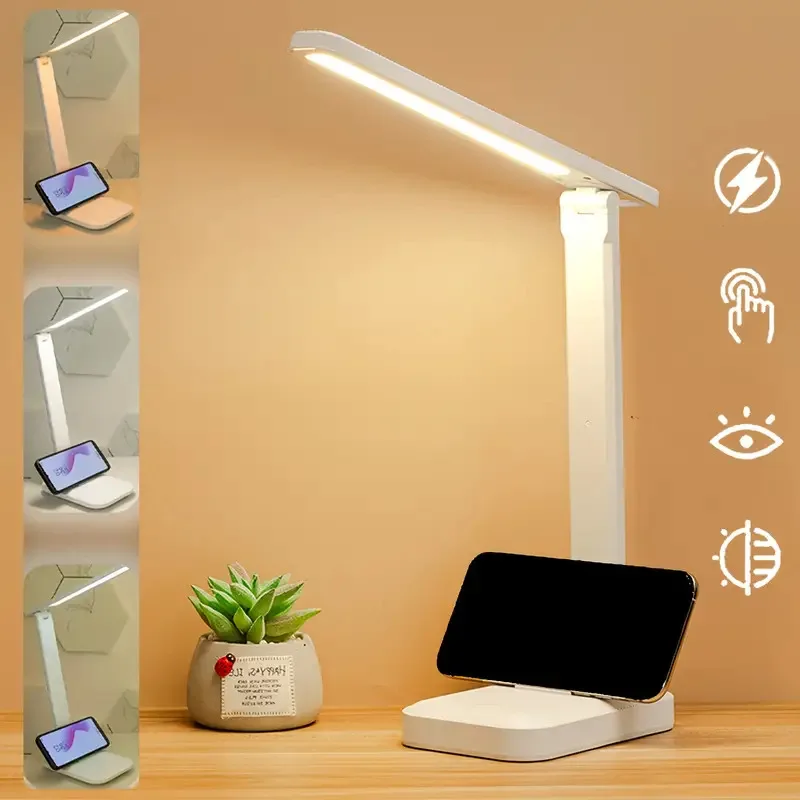
This foldable LED desk lamp is a small, USB-charged task light: it folds flat for travel, stands on a desk for reading or bedside use, and its base holds a phone or tablet. The listing states touch control, stepless dimming, three light modes (cold, warm and mixed), a rechargeable battery, and a nominal voltage of […]
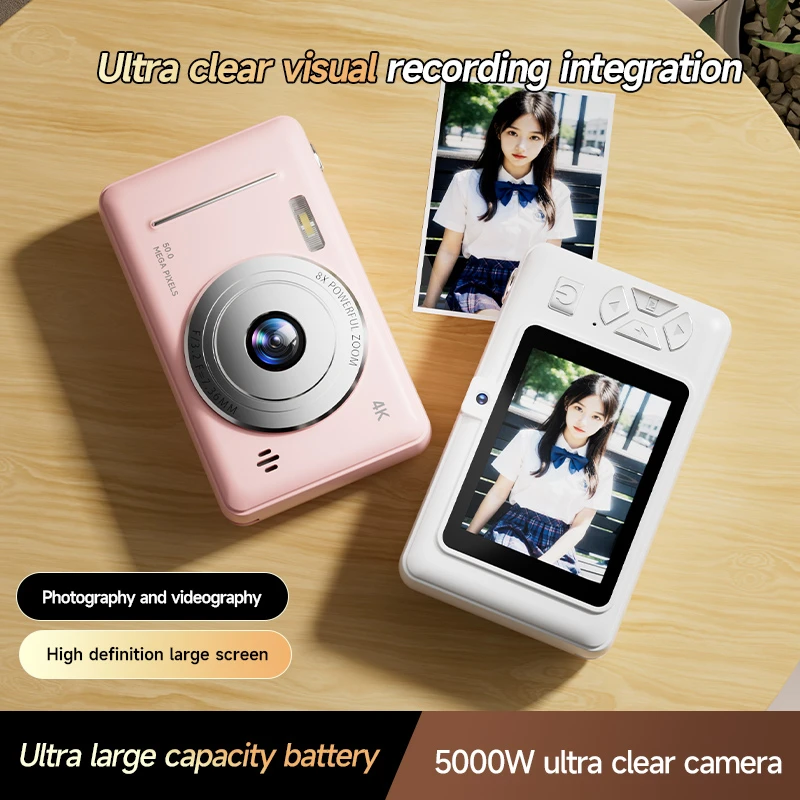
This retro-style CCD camera is a compact point-and-shoot that leans on its look: a pocketable body, a flip-style dual-camera setup, a flash, and SD-card storage. The listing states 4K video at 4096×2160, a 1/1.6-inch CCD sensor, and 2x to 7x optical zoom. It is a reasonable fit if you want a cheap, fun second camera […]