

How to Build a Clean Gaming Desk Setup on a Budget
A great gaming desk does not need to be crowded or expensive. The best setups start with what you use every day: a comfortable position, enough space for your mouse, reliable lighting and cables that stay out of the way. Here is how to build a cleaner setup one decision at a time.
On this page
Start With Your Desk Space
Before buying anything, measure the desk you already have. Width and depth matter more than looks: a narrow desk forces the keyboard and mouse too close together, while a shallow desk pushes the monitor too close to your eyes.
A practical starting point is to leave enough room for your mouse to move freely at the sensitivity you actually play at — low-sensitivity players need noticeably more horizontal space than high-sensitivity players. Check the distance from your eyes to the screen as well. If you have to lean in to read text, the monitor is too far away or too small for the distance, not necessarily too old. Our desk mat size guide shows how to measure the width and depth your keyboard and mouse need.
Also look at what is under and around the desk. A power strip on the floor, a wall socket behind the desk, and a clear path for cables will shape every decision that follows. If your desk sits against a wall, you have a natural place to hide a cable tray; if it floats in the middle of a room, plan for cable routing that does not dangle in view.
Prioritize the Gear You Touch Every Day
The items your hands rest on deserve the budget first: keyboard, mouse, and headset. Everything else — lighting, desk mats, monitor arms — can wait.
For keyboards, the choice that matters most is layout, not brand. A full-size board keeps the number pad; a tenkeyless board drops it and frees mouse space; compact 60% and 75% layouts save even more room but move some keys to a second layer. Try to picture which keys you actually reach for during a normal session before choosing. Our guide to mechanical keyboard sizes explains which keys each layout keeps and what you give up. Switch feel matters too: some switches are quiet and smooth, others are clicky and loud. If you share a room or play late at night, noise level is a real consideration, not a minor detail. Learn more in the Gaming Setups hub and the Mechanical Keyboards category.
For mice, shape beats specifications. A mouse that fits your grip and hand size will feel better after two hours than a technically impressive one that does not. Weight is personal as well — some players prefer a light mouse for fast movement, others prefer a little weight for control. If you can, compare shapes in person before deciding. See Gaming Mice for what to compare. If the mouse itself is the question, our gaming mouse size and grip guide shows how to measure your hand and pick a shape for your grip.
For headsets, comfort and a clear microphone matter more than simulated surround sound for most players. A headset that presses on your ears after an hour will sit unused, no matter how good it sounds in the first ten minutes.
Once the desk itself is planned, route the cables without drilling: our cable management guide compares clamp trays, adhesive clips and sleeves.
A USB-C hub is the other piece of the desk: our USB-C hub buying guide shows how to check your laptop’s port before you buy.
Lighting is the other piece of the desk: our monitor light bar vs desk lamp guide compares the two options and shows how to check monitor and webcam fit before you choose.
Make Lighting Useful, Not Distracting
Lighting should help you see your desk, not compete with your screen. A single warm task lamp or a soft light bar behind the monitor usually does more than a room full of color.
RGB accent lighting works best as a background glow, not as a light source. Bright colors pointed at your eyes cause glare and fatigue, especially in a dark room. Keep accent lighting behind or beside the monitor, at low brightness, and let your screen stay the brightest thing in view.
If your room is dark, add a small amount of ambient light behind the desk. It reduces the contrast between a bright screen and a dark wall, which is easier on the eyes during long sessions. For more on this, see RGB & Desk Lighting.
Hide Clutter With Simple Cable Management
Cable clutter is the fastest way to make a good desk look messy — and it is one of the cheapest problems to fix. Start by unplugging everything you do not use every day. Chargers, spare cables, and devices that live on the desk ‘just in case’ are usually the source of the tangle.
Route the cables you keep along the back edge of the desk or underneath it, using a simple tray, adhesive clips, or reusable ties. Leave a little slack at each end so you can move a keyboard or monitor without pulling a plug out. Label the power strip if several devices share it, so you can find the right plug without tracing cables by hand.
If the mouse cable is the one that keeps catching, our wired vs wireless gaming mouse guide compares a cable, a 2.4 GHz receiver and Bluetooth so you can decide whether to route the cable or lose it.
Two safety notes: do not run cables where a chair wheel rolls over them, and do not overload a single power strip with heaters, monitors, a PC, and chargers all at once. If you need more outlets, a strip with its own switch and surge protection is a better answer than a chain of adapters.
Choose Upgrades in the Right Order
When money is limited, upgrade in the order that changes how the desk feels to use:
- Comfort first — a keyboard and mouse that fit your hands, and a chair and monitor height that let you sit straight.
- Space second — a desk mat, a monitor arm, or a smaller keyboard layout that gives your mouse room to move.
- Cables third — a tray and clips, so the desk stays tidy without daily effort.
- Lighting last — task lighting for visibility, then accent lighting for mood.
This order keeps each purchase useful on its own. A light strip bought before a comfortable mouse does nothing for a long session; a good mouse bought first improves every session from day one.
Your Next Step
Start with one change — measure your desk, then pick the single item that bothers you most. From there, explore Mechanical Keyboards, Gaming Mice, and Desk Accessories to see what fits your space and your routine. And if your setup shares a room with everyday life, the same ‘start with what you actually use’ idea applies — see Everyday Carry Essentials: A Simple Guide for Men for a similar approach to choosing fewer, better things.
Buying Checklist — Clean Gaming Desk Setup
- Desk width and depth measured; mouse space checked at your usual sensitivity
- Monitor distance comfortable without leaning in
- Keyboard layout chosen for the keys you actually use (full-size, TKL, 75%, or 60%)
- Switch noise level acceptable for your room and hours
- Mouse shape and weight suit your grip and hand size
- Headset comfortable for sessions longer than an hour
- One task light in place; accent lighting kept low and out of direct view
- Cables routed under or behind the desk, with slack at each end
- Power strip not overloaded; no cables under chair wheels
- Upgrades planned in order: comfort, space, cables, lighting
FAQ
What should I buy first for a clean gaming desk setup on a budget?
Start with the gear your hands touch every day: keyboard, mouse, and headset. Upgrade comfort first — a keyboard and mouse that fit your hands, plus a chair and monitor height that let you sit straight, change how the desk feels more than lighting or desk mats do. Everything else can wait.
How much desk space does my mouse need?
Enough room for your mouse to move freely at the sensitivity you actually play at. Low-sensitivity players need noticeably more horizontal space than high-sensitivity players, so measure the desk you already have before buying anything: width and depth matter more than looks.
Do I need a full-size keyboard, or will a smaller one work?
It depends on which keys you use. A full-size board keeps the number pad; a tenkeyless board drops it and frees mouse space; compact 60% and 75% layouts save even more room but move some keys to a second layer. Picture which keys you actually reach for during a normal session before choosing.
Is RGB lighting useful, or just for looks?
It works best as a background glow, not as a light source. A single warm task lamp or a soft light bar behind the monitor usually does more than a room full of color. Keep accent lighting behind or beside the monitor at low brightness, and let your screen stay the brightest thing in view: bright colors pointed at your eyes cause glare and fatigue.
How do I hide cables without drilling?
Start by unplugging everything you do not use every day, then route the cables you keep along the back edge of the desk or underneath it, using a simple tray, adhesive clips, or reusable ties. Leave a little slack at each end so you can move a keyboard or monitor without pulling a plug out, and label the power strip. Do not run cables where a chair wheel rolls over them, and do not overload a single power strip.
In what order should I upgrade my desk setup?
Comfort first, space second, cables third, lighting last. A comfortable keyboard and mouse improve every session from day one, while a light strip bought before a comfortable mouse does nothing for a long session.
Sources
- U.S. Occupational Safety and Health Administration — Computer Workstations eTool, Workstation Environment (glare and eyestrain: excessive light or glare on the monitor can cause eyestrain and headaches; high contrast between light and dark areas causes eye fatigue; diffuse ambient light reduces contrast; lamps need glare shields or shades; place the screen at right angles to light sources)
- Keychron — What to Know Before Buying a Mechanical Keyboard, from Switches to Key (keyboard sizes: full-size keeps the number pad, 104 keys; tenkeyless drops only the number pad, 87 keys; 75% drops the number pad and some navigation keys and keeps the function row, 84 keys; 65% and 60% move missing keys to a function layer; linear switches are smooth, tactile switches have a bump, clicky switches add an audible click)
- Electrical Safety Foundation International — How to Set Up Home Office Electronics Correctly (avoid overloading outlets and power strips; never plug a space heater into an extension cord or power strip; never run cables under rugs, carpets, doors, or windows; keep wires from becoming tripping hazards)
Related Posts
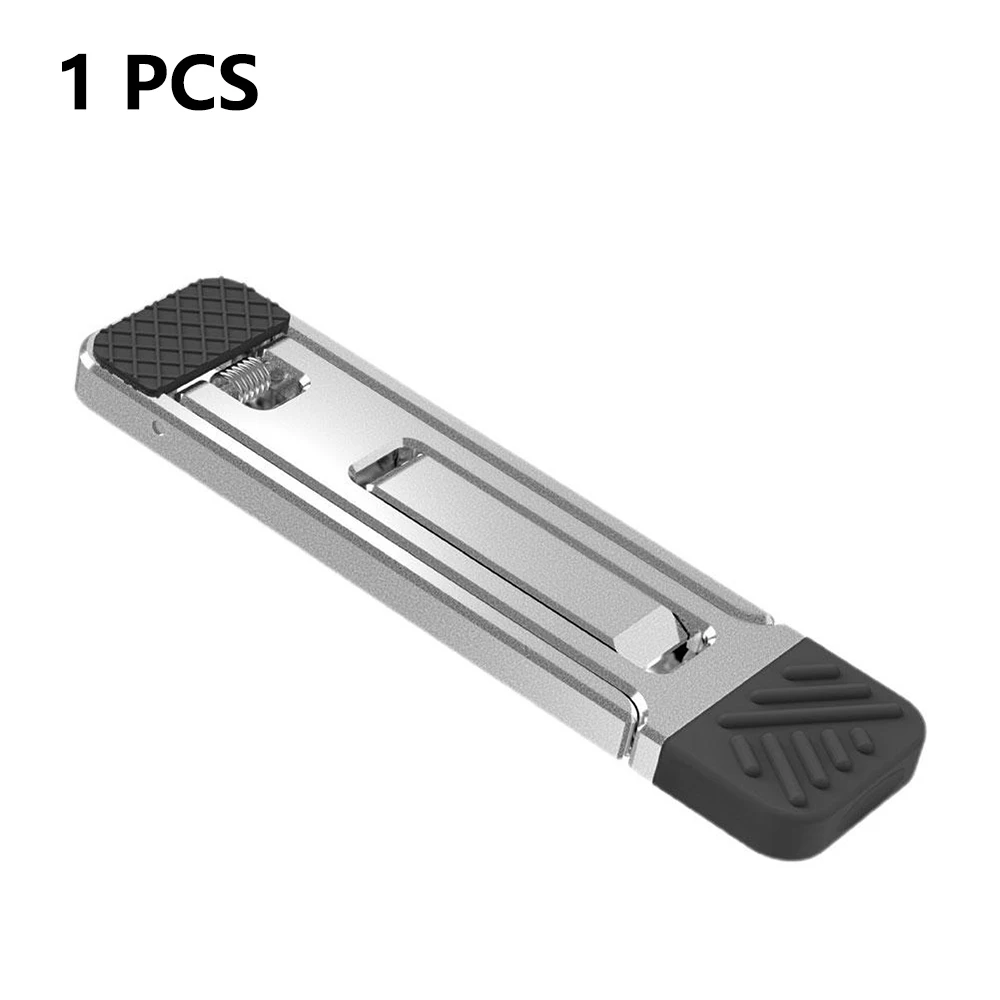
Actual listing image for the 1-piece silver variant (AliExpress item 1005005605228469). Quick answer: The XNYOCN mini folding support is listed as a compact, three-position accessory in a 1-piece silver variant. Confirm the required number of supports, mounting method and load capacity for your device before buying; those details are not established by the listing reviewed, […]

This guide is about one specific listing: a dual monitor arm for 13 to 27-inch screens, fully adjustable, for two monitors. LanPicks has not tested this monitor arm, and this guide reports no test results and no prices. What it does is separate what the listing actually states from what you still need to check […]

A monitor arm does one simple job: it holds your monitor where your eyes want it, and it gives you your desk back. But an arm only works when it matches three things — your monitor’s weight and VESA pattern, your desk’s edge, and how far you need the screen to move. Get any of […]
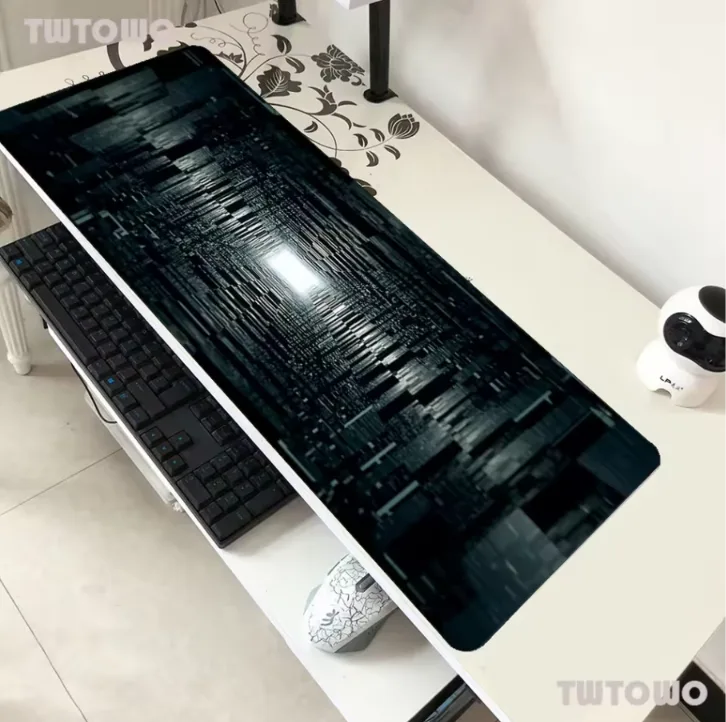
This guide covers one AliExpress listing: a black abstract gaming mousepad sold under the design name “Padmouse Indie Pop”, listed in the 900 × 400 × 2 mm size. It is a product-led buying guide, not a hands-on review — LanPicks has not tested, owned, or measured this mousepad — so this page sticks to […]
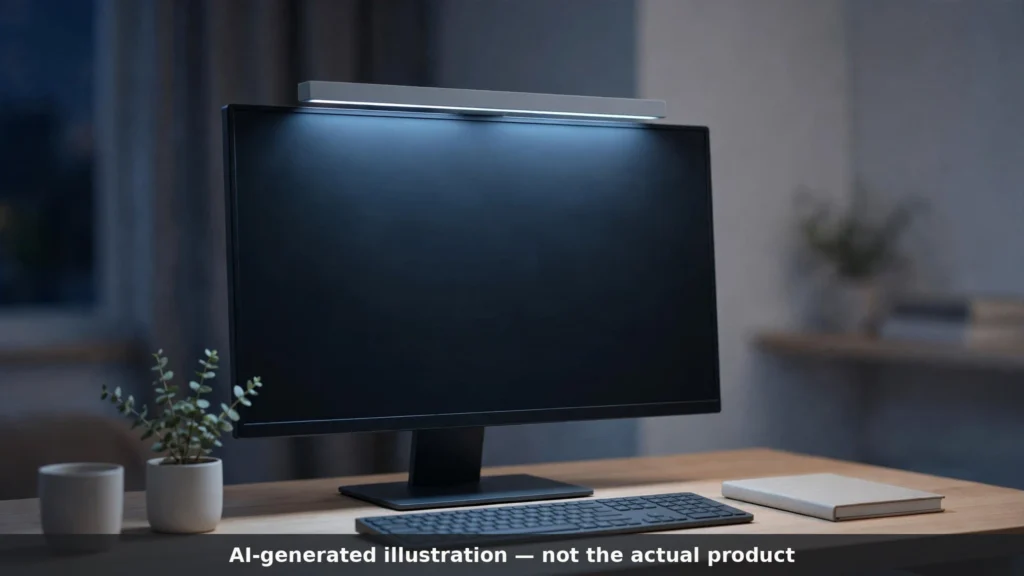
A 44 cm monitor light bar hangs on top of your monitor and lights the desk in front of the screen, without taking desk space the way a lamp does. This guide covers one listing for that kind of light — the Wiscolor 44 cm screen hanging light bar, sold on AliExpress — from the […]