

Wired vs Wireless Gaming Mice: Which Should You Choose?
Quick Decision
Pick a 2.4 GHz wireless mouse if you want no cable and play on a PC with a free USB port for the receiver. Pick wired if you never want to think about charging, or you are shopping on a tight budget. Use Bluetooth mainly for a laptop, travel, or a second device — check the model’s report rate before using it for competitive play.
The sentence that matters most: “wireless” is not one connection. A mouse on its own 2.4 GHz receiver and a mouse on Bluetooth behave very differently, and most of the argument about wireless mice comes from comparing the wrong two things. How close wireless gets to wired depends on the model — independent tests put the gap anywhere from about 0.2 ms to about 4 ms depending on the model — so the real decision is about battery, cable, ports, and how you use the mouse.
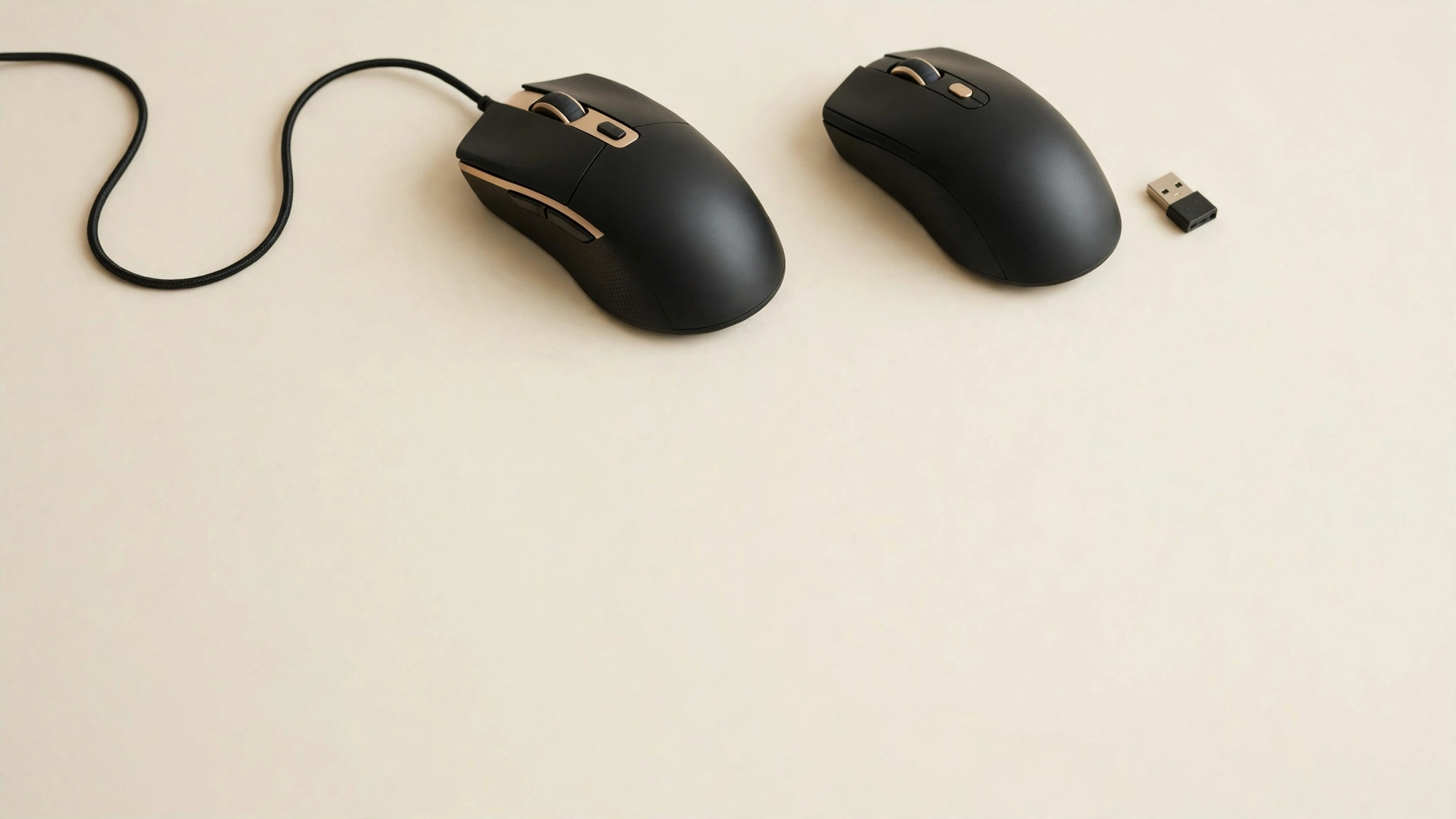
How this guide was put together: LanPicks did not test mice hands-on for this article. Connection modes, polling rates, and battery figures are based on the manufacturers’ published specifications and independent measurements, checked on 12 November 2026. Figures are for the named models only — other mice vary, so check the model you own. The hero image is an AI-generated editorial illustration, not a photo of a real product. Our editorial policy explains how we research and write guides.
In this guide
Connection Types Are Not Interchangeable
A gaming mouse connects in one of three ways, and each one is a different deal.
Wired USB. A cable carries both power and data. A dedicated wired mouse needs no charging and has no receiver to lose — but that “no battery” applies only to a dedicated wired mouse; a tri-mode mouse still has a battery inside even when you use it wired. Whether a wired connection runs 8000 Hz depends on the mouse, the mode, and the dongle or firmware support, not on the cable alone. The cost is the cable itself: it can tug, catch on the desk edge, and needs a route.
2.4 GHz receiver. A proprietary radio link through a small USB dongle — Logitech Lightspeed, Razer HyperSpeed, and similar systems. This is the gaming mode: 1000 Hz is common, and some models reach 8000 Hz with a supported dongle (sometimes a separate high-polling dongle, sold with the mouse or separately). It needs a free USB port for the receiver, and the battery is the ongoing cost.
Bluetooth. A standard mode built into most laptops. It needs no dongle, which is why it suits travel and a second device — but it still needs the host to have Bluetooth: a desktop PC without a Bluetooth radio needs an adapter, and that adapter uses a USB port. The report rate on Bluetooth differs by model, so check the spec sheet for the mouse you are considering: Logitech’s own support guide for the G603 says Bluetooth runs in the mouse’s endurance (LO) mode, where the report rate is fixed at 8 ms (125 Hz) and cannot be adjusted — against 1000 Hz (1 ms) by default in its LIGHTSPEED performance (HI) mode. That rate is why Bluetooth is a poor fit for fast competitive games on the models that report this slowly — but the rate differs by model, so judge it by the model’s spec sheet and the game, not by the word “Bluetooth” alone. Some mice skip Bluetooth entirely. If your mouse has both modes, check which one is active before you blame the mouse for feeling slow.

Swipe to compare all columns →
| Connection | Typical polling | Needs | Good for | Main catch |
|---|---|---|---|---|
| Wired USB | 1000 Hz, up to 8000 Hz on recent mice | A USB port and the cable | Zero battery worry; simplest high polling | Cable drag unless you use a bungee or a very light cable |
| 2.4 GHz dongle | 1000 Hz, up to 8000 Hz with a supported dongle | A USB port for the receiver | Competitive and everyday gaming | Battery life; receiver placement; sometimes a separate high-polling dongle |
| Bluetooth | Varies by model — fixed at 125 Hz (8 ms) on the Logitech G603 | A host with Bluetooth (a desktop without it needs an adapter) | Laptops, travel, office work | Report rate differs by model; check the spec sheet |
The table above is about the connection, not the mouse. A single model can offer all three modes and behave differently in each, so read the spec sheet per mode, not per mouse.
Performance Claims and Their Evidence
Polling rate is how often the mouse reports. At 1000 Hz it reports once every 1 ms; at 8000 Hz, every 0.125 ms; at 125 Hz, every 8 ms. Polling rate has nothing to do with sensitivity — it is not DPI.
Those figures are the intervals between reports, not the total latency. The sensor, the radio, the firmware, and the PC add their own time, so a click does not wait exactly 1 ms at 1000 Hz. In interval terms, moving from 125 Hz to 1000 Hz shortens the gap between reports from 8 ms to 1 ms, and from 1000 Hz to 8000 Hz from 1 ms to 0.125 ms — a 0.875 ms shorter interval on paper. That is the gap between reports, not a measured latency saving.
Is wired faster than wireless? On the same polling rate, the honest answer is: it depends on the model. The cleanest independent comparison comes from Igor’s Lab, which used NVIDIA’s LDAT tool to measure end-to-end latency (click to on-screen result, including display lag) at a uniform 1000 Hz, published 6 May 2025. The wireless-vs-wired gap it measured was about 0.2 ms on the Logitech G303 Shroud Edition, near identical on the Logitech G903 Lightspeed and the ASUS ROG Harpe Ace Aim Lab Edition, 2.5 to 3.4 ms on the Logitech Pro X Superlight and ASUS ROG Chakram X (the article does not say which mouse got which value), and about 4 ms on the BenQ Zowie U2. These are older models, and Bluetooth connections were deliberately excluded from that test. One maker’s own test shows how small the gap can be on a single model: Keychron reports average click latency of 0.382 ms over 2.4 GHz wireless 8K against 0.188 ms wired 8K on its G6 HE, measured with professional latency testing equipment — a manufacturer claim, not an independent result.
Is 8000 Hz better? Not in general. It is a setting whose benefit depends on the monitor, the PC, and the game — try it and compare. On a 60 Hz office monitor, 1000 Hz already sends about 17 reports per frame, so you are unlikely to see a change (Keychron). The cost is real: Igor’s Lab notes that 8000 Hz places a significantly higher load on the CPU, and Razer’s own HyperPolling page says that in CPU-bound cases the computer might lack the resources to process 8,000 reports a second. A steady 1000 Hz is more useful than a higher rate the computer cannot keep up with, and a wireless link can drop reports — the rate on the box is not a guarantee of the rate you get.
The useful rule: if a game feels worse after switching to a higher polling rate, step down one level and compare. The polling rate is a setting, not a verdict on the mouse.
Charging and Battery
Every battery figure needs the question “at what polling rate — and under what conditions?” A headline number without its rate tells you little. On one model, the Keychron G6 HE, the maker lists different runtimes by mode and rate — all figures are “up to” and depend on settings.
Swipe to compare all columns →
| Keychron G6 HE mode | Polling rate | Battery life |
|---|---|---|
| Bluetooth 5.3 | 125 Hz | Up to 271 hours |
| 2.4 GHz, low rate | 125 Hz | Up to 248 hours |
| 2.4 GHz | 1000 Hz | Up to 191 hours |
| 2.4 GHz | 8000 Hz | Up to 33 hours |
Source: Keychron. The Keychron M6 8K shows the same pattern: up to 120 hours at 1000 Hz and up to 35 hours at 8000 Hz in 2.4 GHz mode. Lighting and other features can shorten runtime further — check the conditions in the spec sheet. Other figures, each with the rate its maker states: the Razer Viper V3 Pro runs up to 95 hours at 1000 Hz and the Viper V4 Pro up to 180 hours at 1000 Hz. Compare battery figures only at the same rate, on the same model.
Charging. Most current wireless mice charge over a USB-C cable, and some come with a charging dock. A few run on a replaceable AA battery instead of a built-in rechargeable cell — check the spec sheet for the model you are considering. Whether a mouse keeps working while its cable is plugged in varies by model: check the manual before you assume you can play through a charge. A dedicated wired mouse avoids the charging question entirely — the cable carries power, so it never needs charging. Whether it runs 8000 Hz still depends on the mouse and its firmware.
Cable and Receiver Placement
The cable. Even a light, flexible cable can tug and catch on the desk edge, and it matters most on large arm movements. A bungee holds the cable off the desk; wireless removes the cable altogether. If the cable is the problem rather than the mouse, our clean gaming desk setup guide covers planning the desk layout and cable routes.
The receiver. Placement matters more than most buyers expect. Razer’s HyperPolling setup advice is to keep the receiver in line of sight, within about 30 cm (about a foot), and as far as possible from active USB 3 hubs, which generate 2.4 GHz noise; a short USB extension can bring the receiver to the desk if it needs to sit closer. If the link still drops, try a different USB port on the PC itself as a troubleshooting step — that tests the port, it does not guarantee lower latency.
Interference. A wireless link shares the 2.4 GHz band with Wi-Fi, Bluetooth, and other devices. If reports drop out, moving the receiver closer often helps. A cable takes the radio out of the equation, which is one reason wired still wins in a room crowded with wireless devices. Before you decide, check you have room to move the mouse at all — our desk mat size guide shows how to measure for it.
Travel and Shared Devices
Bluetooth earns its place here. It needs no dongle, pairs with a laptop or tablet, and suits a bag better than a receiver does — as long as the host has Bluetooth; a desktop without it needs an adapter. If the mouse offers both modes, use the receiver for games and Bluetooth for everything else — and check which mode is active before a match, not during one.
The dongle is a small thing to lose, and a wireless mouse carries a failure mode a wired one cannot have: a forgotten dongle. Keep it in the mouse’s storage slot if it has one, or in a fixed pocket of the laptop bag. A gaming receiver is paired to its own mouse — do not expect it to run another brand’s mouse.
On a shared desk, one mouse can serve two machines if it supports switching between them — Bluetooth to the work laptop, receiver to the gaming PC, for example. How switching works varies by model, so check the manual for the switch method before you count on it.
Decision Checklist
Start from your setup, not from a spec sheet. The connection is settled first; shape and grip decide far more than milliseconds once the connection is good enough.
Swipe to compare all columns →
| If you… | Pick | Why |
|---|---|---|
| Never want to charge anything, or you are shopping on a tight budget | Wired | No battery to charge and no receiver to keep track of |
| Want no cable and play competitive games on a PC | 2.4 GHz wireless | Same polling rates as wired on a good receiver; keep the receiver close and in line of sight |
| Play on a laptop, travel, or share one mouse between devices | Wireless with Bluetooth (or both modes) | No receiver when the host has compatible Bluetooth; otherwise an adapter may use a port. Use the receiver for games |
| Play fast shooters and want to try the highest polling rate | Consider 8000 Hz — wired or a supported dongle | Try it and compare; if a game feels worse, step down a level |
| Forget to charge | Wired — or wireless with a dock and a charging habit | A dead mouse mid-match costs more than any millisecond |
| Have a small desk or a room crowded with 2.4 GHz devices | Wired — or a receiver on an extension close to the mouse | A cable takes the radio out of the equation |
FAQ
Is a wireless gaming mouse slower than a wired one?
It depends on the connection and the model. On its own 2.4 GHz receiver, a gaming mouse can report as often as a wired one — independent LDAT tests (Igor’s Lab, 2025) put the wireless-vs-wired gap at about 0.2 to 4 ms by model at 1000 Hz. Bluetooth is a separate mode with its own report rate, which differs by model.
Is Bluetooth good for gaming?
It depends on the model and the game. Bluetooth suits casual or slow-paced games and travel; for fast competitive games it is a poor fit on the models that report slowly — Logitech’s G603, for example, runs Bluetooth at a fixed 125 Hz (8 ms) that cannot be adjusted. If your mouse has a gaming receiver, use that for games and keep Bluetooth for other devices.
Can a wireless mouse hit 1000 Hz or 8000 Hz?
Yes, on a gaming receiver. Razer’s DeathAdder V3 Pro defaults to 1000 Hz wireless polling and can be set to 8000 Hz with the HyperPolling dongle (sold separately) — and this model has no Bluetooth at all. On mice that do offer Bluetooth, that mode may stay at a low rate — Keychron’s M7, for example, runs at a fixed 125 Hz on Bluetooth. Some computers cannot process 8,000 reports a second — confirm the real rate before you trust the headline figure.
How long does a wireless gaming mouse battery last?
It depends on the polling rate and the settings. Always ask at what polling rate a battery figure was measured — the Keychron G6 HE, for example, runs up to 191 hours at 1000 Hz and up to 33 hours at 8000 Hz. Lighting and other features can shorten runtime further.
Can I use a wireless mouse while it charges?
It depends on the model. Some keep working with the cable plugged in; others do not. Check the manual before you assume you can play through a charge.
Do I need a USB port for a wireless mouse?
Yes for the 2.4 GHz receiver; no for Bluetooth on a host that has it — a desktop without Bluetooth needs an adapter, which uses a port. A wired mouse needs a port for its cable.
Conclusion
There is no single winner — there are three connections, and each one fits a different setup. A 2.4 GHz receiver is the gaming mode: how close it gets to wired depends on the model, and the price is battery life and receiver placement. Bluetooth is the travel mode: convenient, with a report rate that differs by model. Wired is the battery-free mode: nothing to charge and no receiver to lose, and the only cost is the cable — which still needs a USB port and can wear. Choose by asking what bothers you most: charging, a cable, or a dongle. Once the connection is settled, shape and grip decide the rest — and whatever you choose, measure the desk space it needs first. Our desk mat size guide shows how. If you have not settled the fit yet, our gaming mouse size and grip guide shows how to measure your hand and choose a shape for your grip.
The cables from your mouse, keyboard and monitor also need a home: our cable management guide shows how to route them without drilling.
Sources
- Keychron — 8000Hz Polling Rate Mouse: When 8K Is Worth It and What It Costs (polling intervals; G6 HE battery by rate: 248 h at 125 Hz, 191 h at 1000 Hz, 33 h at 8000 Hz, 271 h Bluetooth 5.3; M6 8K battery; M7 Bluetooth fixed at 125 Hz; G6 HE click latency 0.382 ms wireless 8K vs 0.188 ms wired 8K)
- Igor’s Lab — Latency Measurements on Gaming Mice in a Roundup Review (LDAT V2 end-to-end measurements at 1000 Hz, published 6 May 2025; wireless-vs-wired gaps by model: G303 0.2 ms, G903/Harpe near identical, ProX/Chakram 2.5–3.4 ms, Zowie U2 4 ms; 0.875 ms theoretical reduction; 8000 Hz CPU load)
- Razer — Viper Line: Which One Is Right for You? (Viper V4 Pro 49 g, up to 8000 Hz wired and wireless, up to 180 hours at 1000 Hz; Viper V3 Pro 54 g, HyperPolling dongle up to 8000 Hz wireless, up to 95 hours at 1000 Hz)
- Razer — DeathAdder V3 Pro (HyperSpeed Wireless + wired USB-C, no Bluetooth; default polling 1000 Hz, upgradeable to true 8000 Hz with HyperPolling dongle sold separately; up to 90 hours)
- Logitech Support — Connect the G603 gaming mouse to a compatible device (Bluetooth runs in endurance mode, report rate fixed at 8 ms (125 Hz) and cannot be adjusted; performance mode defaults to 1 ms (1000 Hz))
- Logitech G — PRO X2 SUPERSTRIKE vs PRO X SUPERLIGHT 2 (Superlight 2: 60 g)
- Razer — Razer HyperPolling Wireless Gaming Technology (receiver placement: dongle in line of sight within 30 cm, as far as possible from active USB 3 hubs; CPU-bound cases may lack the resources to process 8,000 reports a second)
- LanPicks — Clean Gaming Desk Setup on a Budget (G1)
- LanPicks — Desk Mat Size Guide (G7)
Related Posts
This is a keycap set only: black keycaps, no keyboard and no switches. It is worth buying only if your board takes MX-style stems, uses an ANSI layout, and matches the key widths and rows in the set. Keychron describes the set as a full set of 141 keys; the AliExpress listing does not confirm […]

A gaming mouse that fits your hand disappears during play; one that does not keeps reminding you it is there. Fit comes down to two numbers — your hand length and width — and one habit — your grip. Measure both, compare them against the maker’s published dimensions, and use the starting ranges in this […]

A mechanical keyboard switch is the mechanism under each key. Most common mechanical switches fall into one of three feel families — linear, tactile, or clicky — and the family is about what a keypress feels like under your finger. Force and travel are a separate decision: two switches in the same family can press […]

Both the 75% and the TKL drop the number pad, and both keep a function row and dedicated arrow keys. But they do not keep the same keys in the same way: a 75% usually keeps fewer dedicated navigation keys than a TKL, and how many it keeps — and where they sit — varies […]
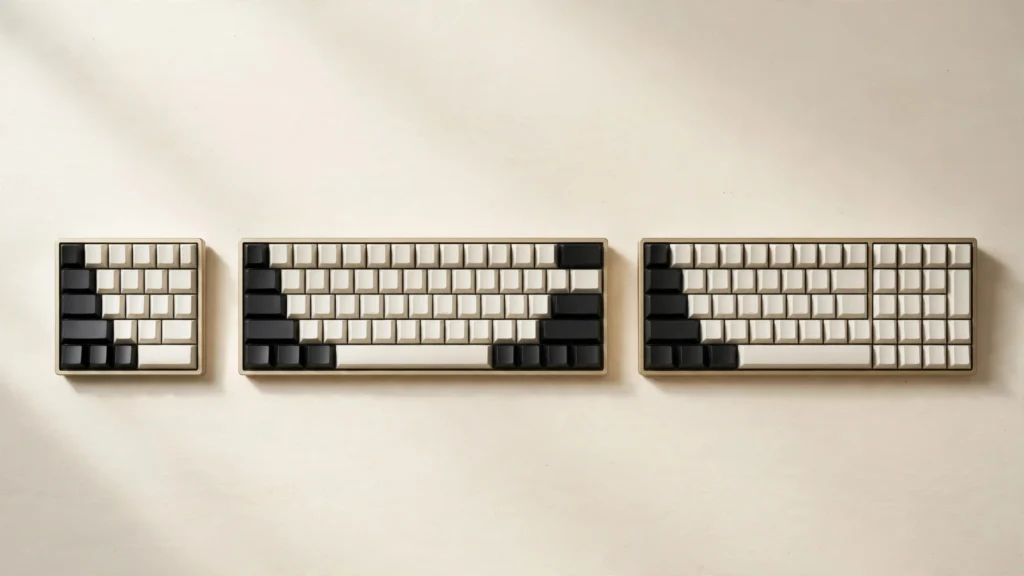
Shopping for a mechanical keyboard starts with a confusing wall of labels: 60%, 65%, 75%, TKL, full-size. They look like precise measurements, but they are not. They are rough shorthand for how many keys a layout keeps compared with a standard full-size board — and, more usefully, which groups of keys you give up. Short […]