

Monitor Light Bar vs Desk Lamp: Which Fits Your Setup?
Quick Decision
If your work happens almost entirely on the screen and your desk is small, a monitor light bar is the better fit: it clamps to the top of your monitor, lights the desk in front of the screen without touching the screen, and takes up no desk space at all. If you regularly read paper, sketch, or handle objects away from the screen, a desk lamp is the better fit: you can move its light to wherever the work is. Before you buy either one, check three things: your monitor’s thickness and curve, where your webcam sits, and where the light will land relative to your screen.
How this guide was researched. We checked the search results for “monitor light bar vs desk lamp” on 13 November 2026: the dominant intent is a straight comparison, led by BenQ’s own comparison guide, Desk and Daylight, Eureka Ergonomic, and Remote Ergo Lab. Monitor specifications come from the maker’s own pages and instruction manuals (BenQ’s ScreenBar Halo page and the Halo 2 and Pro manuals); lighting guidance comes from the U.S. Occupational Safety and Health Administration’s Computer Workstations eTool. We did not test any lamp hands-on, and the dimensions and ranges below are the makers’ published limits, not our measurements. No prices are given, and no eye-health or productivity outcome is claimed; where official guidance describes a mechanism, it is quoted and attributed.
Contents
What You Need to Illuminate
The two lights solve different problems, and the work you do decides which problem is yours. A light bar solves one narrow problem: a bright screen in a dim room. The U.S. Occupational Safety and Health Administration’s workstation guidance states the mechanism directly: “if lighting is excessive or causes glare on the monitor screen, you may develop eyestrain or headaches.” The gap between a bright screen and dark surroundings is the problem, and the bar closes it by raising the light level of the desk around the screen — without putting any light on the screen itself.
A desk lamp solves the older problem: lighting a surface so you can see objects on it. OSHA asks for “supplemental task/desk lighting to adequately illuminate writing and reading tasks while limiting brightness around monitors.” Paper, books, drawings, tools — anything that sits on the desk and is not the screen — is the lamp’s natural work. So the question that decides it is simple: do you look at the screen, or at things on the desk?
If the answer is the screen, and the desk holds little more than a keyboard and a mouse, a bar covers the work. If the answer is paper and objects — things that sit away from the screen and move around the desk — a lamp covers the work, because you can move it to where the work is. Wide desks complicate the bar’s case: a standard bar is about 45–50 cm wide (BenQ’s ScreenBar Pro is 50 cm wide) and lights the center, so on a wide or dual-monitor desk the outer edges stay darker, while a lamp lights one area at a time and has to be moved.
Desk Footprint
A bar occupies no desk surface. It hangs from the top of the monitor, and its cable runs to the back of the screen, where the other cables already are. That makes it the natural fit for a small or shallow desk — with one condition: the clamp and counterweight sit behind the monitor, so the monitor needs clearance from the wall.
A lamp needs a place to stand: a base on the desk, or a desk edge thick enough for a clamp model. The base takes a patch of desk that a keyboard, a notebook, or a coffee cup could have used, and on a small desk that patch matters. A clamp model saves the surface but needs a free desk edge of suitable thickness.
If the desk itself is the constraint — too small, too shallow, or already crowded — fix the layout first. Our clean gaming desk setup guide walks through what goes where on a desk and what to leave off it, so the light you choose has a desk that fits it.
Monitor and Webcam Compatibility
A bar only works if it fits your monitor, and this is the step most buyers skip. Three checks decide it: the monitor’s thickness, its curvature, and the shape of its back. The table below shows the published ranges for four bars from one maker — not as a ranking, but as examples of how the ranges are stated, so you know what to look for on any maker’s spec page.
Swipe to compare all columns →
| Model (example) | Flat monitor thickness | Curved monitor thickness / curve | Webcam note |
|---|---|---|---|
| ScreenBar Halo | 0.7–6 cm | 1.6–3.8 cm | No webcam accessory stated; check the clip against your camera |
| ScreenBar Halo 2 | 0.43–6 cm | 1000R–1800R | Webcam accessory included; mounts on the clip |
| ScreenBar Pro | 0.43–6.5 cm | 1000R–1800R | Clamp has a dedicated space for a webcam |
| ScreenBar (original) | 1–3 cm | 1–3 cm | Narrowest range of the four |
Published ranges from the maker’s product pages and instruction manuals, not measurements. Thickness alone does not prove a fit — bezel shape, rear contour, and bulges matter. Check the maker’s compatibility page for your exact monitor.
Thickness alone does not prove a fit. BenQ’s compatibility notes list shapes that fail even inside the range: a top bezel that is not horizontal, a back with two bevels, or a non-planar back whose upper edge sits less than 7.7 cm below the top of the bezel. Measure your monitor’s top edge, then check the maker’s compatibility page for your exact model.
Curvature is the second check. Curved monitors list a curvature like 1000R, 1500R, or 1800R — the radius of the curve in millimeters, so a smaller number means a deeper curve. Match the bar’s stated curve rating to your panel: a flat bar on a curved panel leaves gaps at the outer edges, and the light spills into the gap. A bar with no stated curve rating was designed for flat panels.
The webcam is the third check, and the most commonly missed. Most clip-on webcams sit dead center on the top bezel — the same place the bar’s clamp sits — so a bar can physically block the lens. Three ways around it: mount the camera slightly off-center, use a bar with a webcam accessory (the Halo 2 ships one; the Pro’s clamp has a dedicated space), or use a monitor with a built-in pop-up camera, which is usually unaffected. Decide where the camera goes before you clamp the bar.
A lamp has none of these constraints. It does not depend on your monitor’s thickness, curvature, or rear design, which is one reason it remains the safer choice when the monitor is unusual — very thin, very thick, deeply curved, or carrying a camera you cannot move.
Reflections and Placement
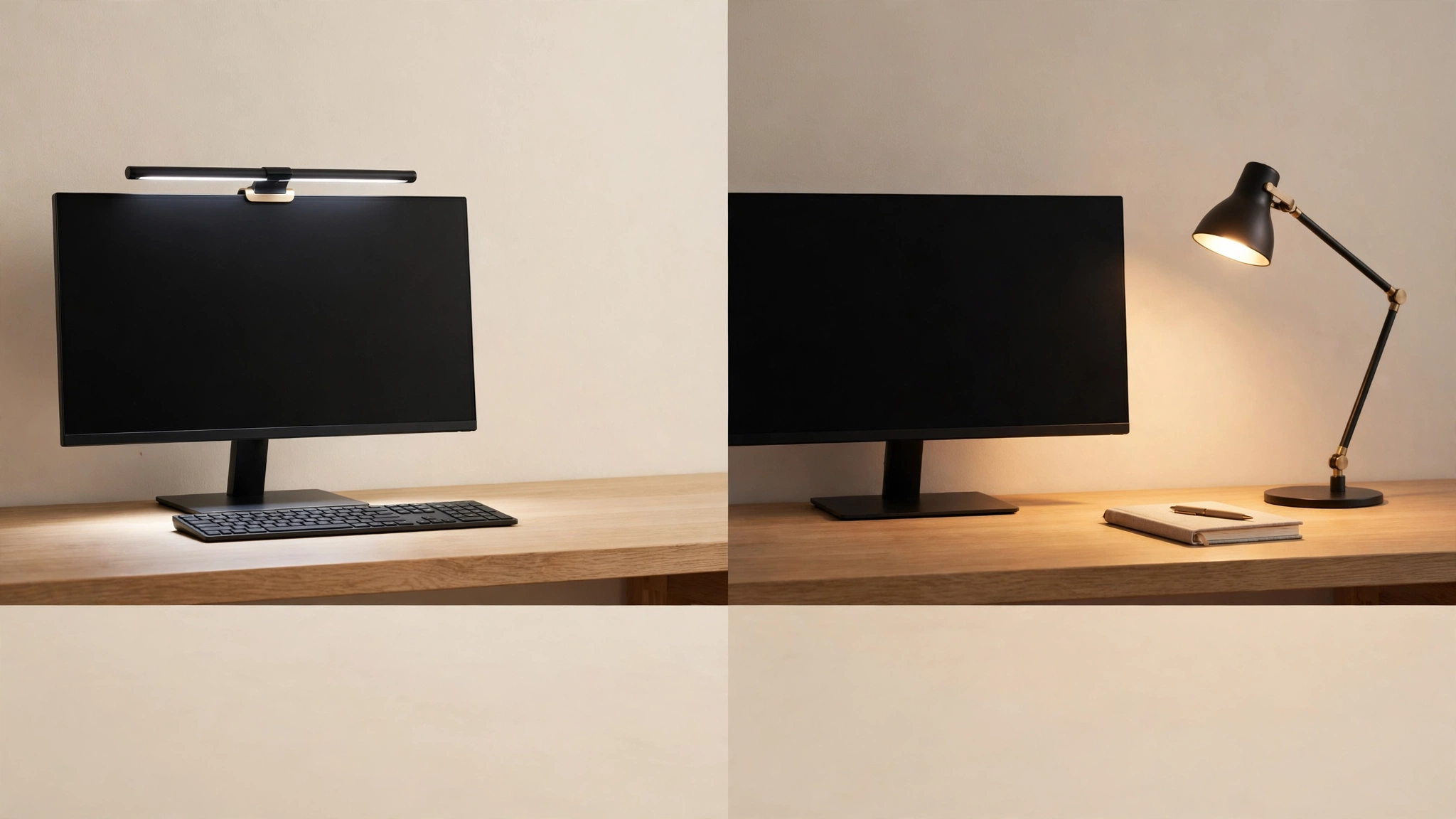
The bar’s trick is geometric. Its LEDs are angled down and forward — the Halo 2’s manual states an 18° anti-glare angle — so the light lands on the desk and never on the screen. BenQ calls the design asymmetrical optics, and contrasts it with the symmetrical light of a traditional lamp, which spreads in all directions, and the divergent light of other bars. The geometry is the product: a bar that threw light at the screen would be a worse lamp, not a better one.
The lamp’s failure mode is aiming. Aimed wrong, it hits the screen and makes things worse rather than better: light reflects off the display and the image gets harder to see. OSHA’s guidance covers this directly: arrange the workspace to minimize glare from desk lamps, provide supplemental task lighting while limiting brightness around monitors, and make sure lamps have glare shields or shades that direct light away from your line of sight. The same guidance asks for the screen to sit at right angles to windows and light sources, so reflected light does not land on the panel.
Three placement rules follow from that guidance. Put the lamp to the side of the desk, not behind you and not over the screen. Keep the bare bulb out of your line of sight, or it becomes direct glare. And keep the screen at right angles to windows, so daylight does not do to the screen what a mis-aimed lamp would. The bar cannot make the aiming mistake; the lamp can, and it is on you to aim it.

Diagram text equivalent. Top-down view of a desk: the monitor sits at the top center with a light bar on its top edge; the bar’s beam falls forward onto the desk in front of the screen and does not touch the screen. A webcam sits at the top center, beside the bar’s clamp — check the clearance before buying. A desk lamp stands at the right side; its pool of light covers a notebook. A marker on the lamp’s beam reads: aim at the work, not at the screen.
Controls and Power
A bar runs on USB-C. The Halo 2 needs a power source of at least 15 W for optimal performance and ships with an adapter; the Pro draws 5 W and can run from a monitor or computer USB-C port that delivers 5 V / 3 A. Check the power requirement on the maker’s page before you assume a spare USB port will do.
Controls sit on the bar itself or on a wireless controller. Both the Halo 2 and the Pro adjust brightness and color temperature across 2700K–6500K, and both add auto-dimming — the Halo adjusts to 500 lux automatically — plus a motion sensor that switches the light off after five minutes with no movement.
A lamp is usually plug-powered and controlled at the lamp: its own switch or dimmer, no USB port needed — but one more cable and one more plug. Whichever you choose, the cable joins the rest of the desk’s cables behind the monitor. Our desk cable management guide shows a setup that routes them with no drilling, so the new light does not add a visible cable to the desk.
Swipe to compare all columns →
| Factor | Monitor light bar | Desk lamp |
|---|---|---|
| Placement | Clamps to the top of the monitor | Stands on the desk or clamps to its edge |
| Main lighting area | The desk directly in front of the screen | The area you aim it at |
| Desk space | None — no desk surface used | A base footprint, or a free desk edge |
| Screen glare | Asymmetrical optics keep light off the screen | Depends on position, height, and beam direction |
| Adjustment | Head angle; brightness and color temperature on the bar or controller | Lamp head or arm moves; brightness on the lamp |
| Off-screen tasks | Limited — the light stays centered | The lamp’s strength — move it to the work |
| Best for | Screen-centered work on a compact desk | Paper, drawing, and tasks across the desk |
Choose for Your Workspace
Work through the checklist before you buy. Each check takes a minute, and each one rules something out — a bar that does not fit your monitor is not a bargain at any price, and a lamp with nowhere to stand is not a solution.
Swipe to compare all columns →
| Check | How to check | What it decides |
|---|---|---|
| Monitor thickness | Measure the top edge of your monitor | Whether a bar’s clamp can grip it at all |
| Monitor curve | Find the R number on your monitor’s spec page | Whether you need a bar with a stated curve rating |
| Webcam position | Look at where your camera sits on the top bezel | Whether the bar’s clamp will block it |
| Work type | List what you look at most: screen, or paper and objects | Whether the light should stay centered or move |
| Desk space | Measure the free desk surface and the free desk edge | Whether a lamp base or clamp has somewhere to go |
| Power | Check for a free USB port with enough power, or an outlet | Whether a USB-powered bar or a plug-powered lamp fits the setup |
Choose a monitor light bar if most of your work happens directly in front of the screen; you want the desk surface clear; you prefer light that stays centered and needs little repositioning; your monitor and webcam are compatible; and the main work area is the center of the desk.
Choose a desk lamp if you frequently work with paper, drawings, or physical objects; you need to move the light between different areas of the desk; your tasks are not always centered around the monitor; your monitor does not fit a bar; or you have enough desk or clamp space for the lamp.
If the lighting question sits inside a bigger desk rethink, start with the desk itself. Our clean gaming desk setup guide covers the layout the light has to fit into — and the light bar or lamp you choose slots into that plan.
Conclusion
For screen-centred work on a small desk, a monitor light bar is the neater fit: it takes no desk space and lights the work in front of the screen without shining on the screen — provided your monitor’s thickness and curve accept the clamp and your webcam stays clear of it. For paper, drawing, and work that moves across the desk, a desk lamp is the better tool: you can aim it wherever the work is, as long as it has somewhere to stand and its light stays off the screen.
FAQ
Will a monitor light bar fit a curved monitor?
It depends on the bar. Match the bar’s stated curve rating to your panel’s R number: the BenQ models in the table above state 1000R–1800R. Gentle curves (1500R, 1800R) often accept a straight bar; deeper curves (1000R and below) usually need a bar made for curved screens. No stated curve rating means the bar was designed for flat panels.
Will a light bar block my webcam?
It can. Most clip-on webcams sit top-center on the bezel, exactly where the bar’s clamp sits. Mount the camera slightly off-center, use a bar with a webcam accessory (the Halo 2 ships one; the Pro’s clamp has a dedicated space), or use a monitor with a built-in pop-up camera, which is usually unaffected.
Can a light bar replace a desk lamp for reading paper?
Only for paper directly in front of the screen. A standard bar lights the center of the desk; paper off to the side stays dim. If paper is a regular part of your work, a lamp you can aim at the page is the better tool.
Can I use a light bar as a video-call light?
Not as a key light. It points down at your desk, not forward at your face. It can lift the room’s overall brightness, which helps a webcam image, but for on-camera work you still want a forward-facing light.
How much desk space does each option need?
A bar needs none on the desk surface; its clamp sits behind the monitor, so the monitor needs clearance from the wall. A lamp needs a base footprint on the desk, or a free desk edge for a clamp model.
Sources
- BenQ — “The Great Battle of Light Sources: Monitor Light Bar vs. Desk Lamp” (knowledge center). https://g5dispatcher64us.benq.com/en-us/knowledge-center/knowledge/monitor-light-bar-vs-desk-lamp.html
- BenQ — ScreenBar Halo product page. https://www.benq.com/en-sg/lighting/monitor-light/screenbar-halo.html
- BenQ — ScreenBar Halo 2 product page. https://www.benq.com/en-us/lighting/monitor-light/screenbar-halo-2.html
- BenQ ScreenBar Halo 2 instruction manual (via Manuals+). https://manuals.plus/asin/B0DK59YKRS
- BenQ ScreenBar Pro instruction manual (via Manuals+). https://manuals.plus/asin/B0CZ9P1QW9
- U.S. Occupational Safety and Health Administration — Computer Workstations eTool, Workstation Environment. https://www.osha.gov/etools/computer-workstations/workstation-environment
- Desk and Daylight — “Desk Lamp vs Monitor Light Bar: Which Do You Need?” https://deskanddaylight.com/lighting/desk-lamp-vs-monitor-light-bar
- Eureka Ergonomic — “Monitor Light Bar vs. Desk Lamp.” https://eurekaergonomic.com/blogs/eureka-ergonomic-blog/monitor-light-bar-vs-desk-lamp-lighting-guide
- Remote Ergo Lab — “Monitor Light Bar vs Desk Lamp: Which Cuts Screen Glare?” https://remoteergolab.com/monitor-light-bar-vs-desk-lamp/
- Pickstead — “BenQ ScreenBar Review.” https://pickstead.com/us/guides/benq-screenbar-review/
Related Posts
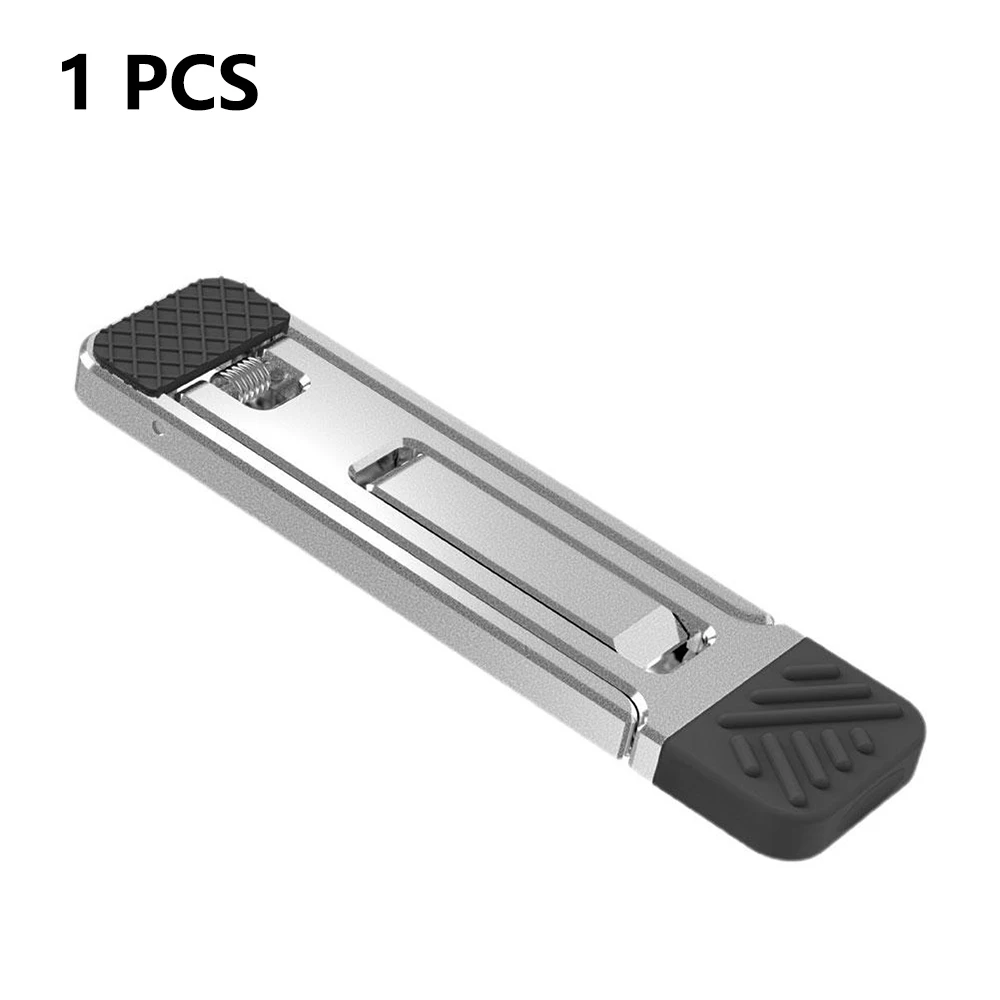
Actual listing image for the 1-piece silver variant (AliExpress item 1005005605228469). Quick answer: The XNYOCN mini folding support is listed as a compact, three-position accessory in a 1-piece silver variant. Confirm the required number of supports, mounting method and load capacity for your device before buying; those details are not established by the listing reviewed, […]

This guide is about one specific listing: a dual monitor arm for 13 to 27-inch screens, fully adjustable, for two monitors. LanPicks has not tested this monitor arm, and this guide reports no test results and no prices. What it does is separate what the listing actually states from what you still need to check […]

A monitor arm does one simple job: it holds your monitor where your eyes want it, and it gives you your desk back. But an arm only works when it matches three things — your monitor’s weight and VESA pattern, your desk’s edge, and how far you need the screen to move. Get any of […]
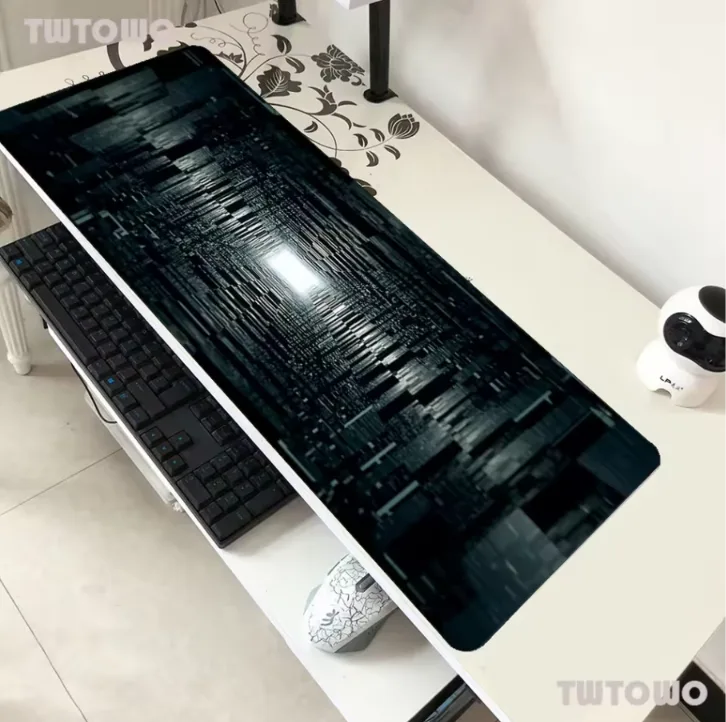
This guide covers one AliExpress listing: a black abstract gaming mousepad sold under the design name “Padmouse Indie Pop”, listed in the 900 × 400 × 2 mm size. It is a product-led buying guide, not a hands-on review — LanPicks has not tested, owned, or measured this mousepad — so this page sticks to […]
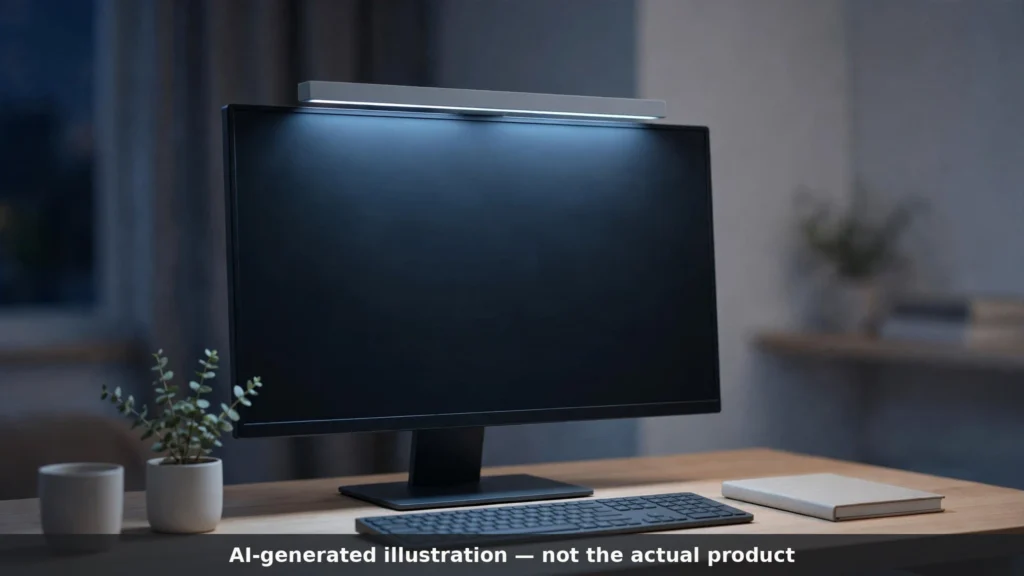
A 44 cm monitor light bar hangs on top of your monitor and lights the desk in front of the screen, without taking desk space the way a lamp does. This guide covers one listing for that kind of light — the Wiscolor 44 cm screen hanging light bar, sold on AliExpress — from the […]