

Smart LED Strip vs Smart Bulb for a Gaming or Bedroom Setup
Typically, a smart LED strip lights a zone and a smart bulb lights a room — but that is a typical use, not a physical absolute. A strip can provide functional, general light if its output and installation suit the room, and one bulb in a fixture does not by itself guarantee whole-room illumination. For a gaming setup, the usual answer is both: a strip behind the monitor for bias light and screen sync, and a bulb or two in the room’s fixtures for general light. For a bedroom, the bulb usually does most of the work — it is typically the room’s main light, with dimming and schedules — and a strip along the bed frame or headboard adds low-level ambient light. If you buy only one, buy the bulb first: it replaces a light you already use. Buy a strip when you want a glow in a specific place, not a light for the whole room.
| What you want | Smart LED strip | Smart bulb |
|---|---|---|
| Light one zone (behind the monitor, along the bed frame) | Yes — its typical job | No — it lights from one fixture |
| Light the whole room | Sometimes — depends on output and installation | Usually — but one bulb does not guarantee it |
| Light that follows the screen while gaming | Yes — if the model supports sync, with compatible hardware | Yes — as room ambience, if the model supports sync |
| Main light with dimming and schedules | Partly — dimming and schedules, but low-level | Yes |
This guide compares the two forms using maker and standards-body pages only: Philips Hue, Govee and LIFX product pages for what each light does, and the Connectivity Standards Alliance and the Thread Group for what Matter, Thread and Zigbee require. No prices are stated, because they change by model and promotion. No product was tested. Lumen figures are never compared across brands, because makers state them on different bases — a strip’s per-metre figure and a bulb’s total are different measurements, not a ranking.

- What a smart strip is — and what it is not
- What a smart bulb is — and what it is not
- Gaming setup: bias light, screen sync, and where each one fits
- Bedroom setup: dimming, colour temperature, and schedules
- Control and protocols: what you actually need
- Installation: cutting, adhesive, power, and where strips cannot go
- Cost: per room, per fixture, and the extras that add up
- How to decide
- FAQ
- Sources
What a smart strip is — and what it is not
A smart strip is a flexible linear light, stuck with adhesive along an edge: behind a monitor or TV, under shelves and cabinets, along coves and bed frames. It throws a glow onto the wall or surface behind it, outlining a zone rather than filling a room. Govee describes its Strip Light 2 as suited to bedrooms, living rooms, gaming setups and home offices, with cut-to-fit lengths and scene modes.
The two maker examples here show how much strips differ by brand. The Philips Hue Lightstrip Plus comes as a 2 m base that can be bent, cut at scissor markings, and extended to 10 m, with 16 million colours. Hue states 1600 lumens total for the strip and says that is “enough light to be used both as a decorative and functional light source” — a maker claim for this model, not a general rule about strips. The Govee Strip Light 2 comes in 5 m and 10 m models, with a stated 155 lumens per metre, a tunable white range of 1000–10000K, and more than 100 preset scene modes.
What a strip is not, typically: it is usually not a room’s main light. A strip’s light is indirect — it bounces off the wall behind the strip — so it typically reads as a glow, not as illumination you can read or work by. A strip can provide general light if its output and installation suit the room; in most setups it reads as a glow, and a strip alone often leaves the middle of the room dim.
What a smart bulb is — and what it is not
A smart bulb screws into an existing standard fixture — a lamp, a ceiling light — and lights the whole room from that point. LIFX puts it plainly on its product page: “Screw it in. Open the app.” Its Color bulb states 800 lumens and describes that as light that “fills the room” — a maker description of its own model.
The two bulb examples here are both 800-lumen class, but they differ in how they connect. The Philips Hue Essential A19 states up to 800 lumens, warm-to-cool white from 2200–6500K, dimming down to 2% brightness, an E26 fitting, and 8.8 W, and it is part of the Hue system, which needs a Hue bridge. The LIFX Color bulb states 800 lumens, a white range of 1500K to 9000K, a CRI of 82, dimming from 1–100%, and no hub — it connects directly over Wi-Fi and is Matter compatible.
What a bulb is not: it cannot outline a zone or run along an edge. A bulb lights from one point — the fixture — so it does not put a glow behind a monitor or along a bed frame the way a strip can. It also has installation limits: LIFX states its bulb must go in an open fixture only, not an enclosed one, must not be connected to a standard incandescent dimmer, and is for indoor use only, on 2.4 GHz Wi-Fi only.
Gaming setup: bias light, screen sync, and where each one fits
In a gaming setup the strip does the job the bulb cannot: it sits behind the monitor and throws a bias light onto the wall, and — with compatible hardware — a strip that supports sync can follow what is on the screen. Bias lighting and screen sync are different things: bias lighting is a static, neutral glow behind the monitor, while screen sync is decorative, colour-changing light that follows the screen. Philips Hue Sync is the most detailed example. Hue’s page describes three ways to sync: a Play screen sync device with a fisheye lens that sits on top of the TV and works with any TV up to 85 inches, including smart TV apps; a Play HDMI sync box (4K or 8K) that syncs only HDMI-connected content, so built-in smart TV apps do not sync through the box alone; and a Sync TV app for Samsung 2022 and later QLED TVs (Q60 or higher) and LG 2024 and later TVs with webOS24 or higher. Syncing up to 10 Hue lights needs a Hue bridge; without a bridge, one compatible strip light can sync. Govee’s equivalent is DreamView, which Govee describes as syncing compatible Govee lights with the screen or music in real time, and RGBIC, where independent-control chips let multiple colours show on one strip at the same time. No maker page states a sync latency figure.
The bulb’s gaming job is different: it sets the room’s ambience around the desk. A bulb in a floor lamp or ceiling fixture, dimmed low, keeps the room from going fully dark without competing with the monitor. For light on the desk surface itself, neither a strip nor a bulb is the right tool — a monitor light bar is, and our guide to monitor light bars vs desk lamps covers that comparison. For the desk itself, our gaming monitor arm guide and our clean gaming desk setup guide cover layout and RGB as background glow.
The common answer for gaming is both: a strip behind the monitor for bias light and sync, and a bulb in the room for general light. If you buy only one, the bulb first — the room usually still needs a main light — and the strip second, when you want the glow.
Bedroom setup: dimming, colour temperature, and schedules
In a bedroom the bulb is the primary light, and the features that matter are dimming, colour temperature, and schedules. The Hue Essential A19 dims to 2% brightness with warm-to-cool white from 2200–6500K. The LIFX Color bulb dims from 1–100% with a white range of 1500K (warm amber) to 9000K (crisp daylight), and its schedules shift from cool daylight to warm 1500K light for wind-down, running automatically once set. Hue offers a sunrise wake-up, where brightness rises gradually, plus warm white evening light, timers and schedules. The Govee Strip Light 2 offers tunable white from 1000–10000K with scheduling and automated routines.
The strip’s bedroom job is low-level ambient light: along the bed frame or headboard, or under a shelf, at a low brightness, as a nightlight-style glow rather than a room light. That is the same zone-vs-room split as in gaming, applied to a bedroom.
This guide makes no claim about sleep or health. Dimming, warm whites and schedules are described here as features the makers state, not as remedies, and none should be read into the warm-white ranges above.
Control and protocols: what you actually need
Every light in this guide is controlled by app and voice, but what sits behind the app differs. The practical question is not “does it have an app” — it is “what hub, bridge or border router does it need, and do you already own one?”
Matter is the Connectivity Standards Alliance’s open smart-home protocol. Its FAQ states that Matter uses Bluetooth Low Energy for device setup and Wi-Fi, Thread and Ethernet for connecting devices, that onboarding uses numeric and QR setup codes, and that multi-admin lets a device be shared across multiple platforms. Matter is a local connectivity technology: Matter-only devices need an internet-connected controller in the home — such as one built into a smart speaker or hub — to allow control when away from home. Matter is deployed across Apple Home, Google Home, Amazon Alexa, Samsung SmartThings and Home Assistant, and supports more than 30 device types including lighting.
Thread is the networking technology Matter often runs on. The Thread Group describes it as IP-based on the IEEE 802.15.4 radio, a low-power self-healing mesh with no single point of failure and no dedicated hub. A Thread Border Router connects a Thread network to Wi-Fi or Ethernet; it is usually not a standalone device — the function is typically built into cable modems, Wi-Fi routers, TV streaming boxes, smart displays or smart speakers. Mains-powered Thread devices, such as light bulbs, can route traffic for other devices, and if one stops working, traffic is automatically re-routed.
Zigbee is the older mesh system Hue is built on. The Connectivity Standards Alliance describes it as a full-stack, low-power mesh solution, fully backward compatible, with over a billion devices deployed worldwide, on 2.4 GHz and Sub-GHz bands, with AES-128 encryption, and names Signify (Philips Hue) among its users. There is no native interoperability between Matter and Zigbee devices; bridges exist that let Zigbee devices take part in a Matter ecosystem.
In practice: a Wi-Fi bulb from LIFX or Govee needs no hub at all. A Hue setup needs one Hue bridge, which then serves many lights. A Thread device needs a border router, which may be built into a compatible device — verify you have one before buying. A Matter logo on the box does not by itself mean two devices will work together — check that the controller in your home supports the protocol the light uses, and check the exact model: Matter support is stated per model, not per brand.
Installation: cutting, adhesive, power, and where strips cannot go
Cutting a strip is the first place buyers get caught out, because “cut to fit” means different things by brand. The Hue Lightstrip Plus can be cut at scissor markings and extended to 10 m. The Govee Strip Light 2 can be cut along designated mark points, but only when powered off — and cut sections cannot be reconnected or extended, and the strip cannot be spliced. Never treat “strips can be cut and reconnected” as a general rule; check the exact model’s page before cutting.
Power and placement need planning before the strip goes up. The Govee strip is corded electric at 24 V and is not water resistant, so it needs an outlet within reach of the controller and a dry surface. Measure the run first: a strip comes in fixed lengths (Govee 5 m or 10 m; Hue 2 m base with extensions), and one strip covers one run — a room with two separate runs needs two strips. The controller and power brick also need a place to sit, and their cables need routing; our cable-management guide covers routing without drilling, which is the same problem a strip’s cables create behind a desk.
Bulbs have their own limits. LIFX states its bulb must go in an open fixture only, with airflow around it, must not be connected to a standard incandescent dimmer, and is for indoor use only. A Hue setup adds one more piece of hardware: the bridge is separate from the light itself and needs its own outlet and network connection.
Cost: per room, per fixture, and the extras that add up
No prices are stated here, because they change by model and promotion. What can be stated is how the cost is structured, and that structure is what catches buyers out.
Bulbs are priced per fixture: one bulb per socket, so a room with several fixtures needs several bulbs. Wi-Fi bulbs need no extra hub; a Hue setup needs one bridge, which then serves many lights, so the bridge cost is spread across the whole setup rather than paid per bulb.
Strips are priced per length: a fixed length per box (Govee 5 m or 10 m; Hue 2 m base, extendable to 10 m). One strip covers one run, and Hue extensions are separate pieces. A room with two runs — behind the monitor and along the bed frame, for example — needs two strips.
Sync is where the extras add up. Hue screen sync needs a bridge and, depending on the route, a Play HDMI sync box, a Play screen sync device, or a compatible Samsung or LG TV app — the TV app is a separate purchase per TV. Govee DreamView sync needs compatible Govee devices. Count those extras before deciding the strip is the cheap option: the light itself is only part of the setup.
How to decide
Work through four checks in order, and the answer usually decides itself.
1. Count the fixtures. If the room has one ceiling light and no other light, start with a bulb — the room usually needs a main light before it needs a glow.
2. Map the surfaces. A run behind the monitor, under a shelf, or along the bed frame is a strip job. A lamp, a ceiling fixture, or a dark corner is a bulb job. If you can point at a surface and say “a glow there”, that is a strip; if you can point at a fixture and say “light from there”, that is a bulb.
3. Check the hub you already own. A Hue bridge, a Thread border router built into a compatible device (verify you have one), or no hub at all — each one points at a different set of lights. Wi-Fi bulbs need no hub; Hue needs its bridge; Thread devices need a border router. Buy the light that fits the controller you have, if any, not the other way round.
4. Decide whether you want screen sync. If the answer is yes, you are buying a system, not a light: a compatible strip, the sync hardware, and the bridge or app that runs it. If the answer is no, a strip is just a glow and a bulb is just a light, and either works on its own.
The short version: bulb first, strip second, both together for a gaming setup. If the desk surface itself still needs light, our monitor light bar vs desk lamp guide is the next comparison to read; if the desk layout is the problem, our clean gaming desk setup guide is the next step.
FAQ
Can a smart LED strip replace a ceiling light?
Usually not — but it depends on output and installation. A strip typically lights a zone — the wall behind it — while a bulb in a fixture typically lights the whole room, though one bulb does not guarantee whole-room illumination. Hue says its Lightstrip Plus, at a stated 1600 lumens total, is “enough light to be used both as a decorative and functional light source”, but that is a maker claim for one model, not a general rule.
Do I need a hub for smart lights?
It depends on the light. Wi-Fi bulbs from LIFX and Govee connect directly and need no hub. A Hue setup needs one Hue bridge, which then serves many lights. A Thread device needs a Thread Border Router, which may be built into a compatible device — verify you have one before buying.
Can I cut a smart LED strip to fit?
Yes, at the marked cut points and only when powered off — but what happens next differs by brand. The Hue Lightstrip Plus can be cut and extended to 10 m. The Govee Strip Light 2 can be cut, but cut sections cannot be reconnected or extended, and the strip cannot be spliced. Check the exact model’s page before cutting.
Will a strip and a bulb from different brands work in the same app?
Only if they share a platform. The same supported ecosystem or controller may control devices using different protocols — for example, a Matter setup can include Zigbee devices through a bridge — but a bridge alone does not universally connect a Wi-Fi Govee setup and a Zigbee Hue setup. Whether two specific devices work together depends on the exact models and the controller, so check both before buying. There is no native interoperability between Matter and Zigbee devices.
Does a smart strip use much power?
Only maker-stated wattage is given here: the Govee Strip Light 2 (10 m) at 48 W, and the Hue Essential A19 bulb at 8.8 W. A strip’s wattage scales with length while a bulb’s is per socket, so the two figures are not a comparison. No running-cost figure is given.
Sources
- Philips Hue — Lightstrip Plus (strip form; cut and extend to 10 m; 1600 lumens total; bridge required; sunrise wake-up and schedules)
- Philips Hue — Essential A19 Smart Bulb (800 lumens; 2200–6500K; dimmable to 2%; 8.8 W)
- Govee — Strip Light 2 (cut rules; 155 lumens per metre; 1000–10000K; 48 W; Matter; 100+ scene modes)
- LIFX — Color Smart Bulb 800 lm (no hub; Wi-Fi; Matter; 1500–9000K; dimming 1–100%; CRI 82; open-fixture and dimmer limits)
- Connectivity Standards Alliance — Matter FAQ (Bluetooth Low Energy setup; Wi-Fi, Thread and Ethernet connections; QR and numeric onboarding; multi-admin; local control; Zigbee bridging)
- Thread Group — Thread and Matter glossary (self-healing mesh; border router built into other devices; mains-powered devices route traffic)
- Connectivity Standards Alliance — Zigbee (full-stack low-power mesh; over a billion devices deployed; Hue runs on Zigbee)
- Philips Hue — Entertainment / Hue Sync (three sync routes; bridge rule for up to 10 lights; HDMI box limits; TV-app compatibility)
Related Posts
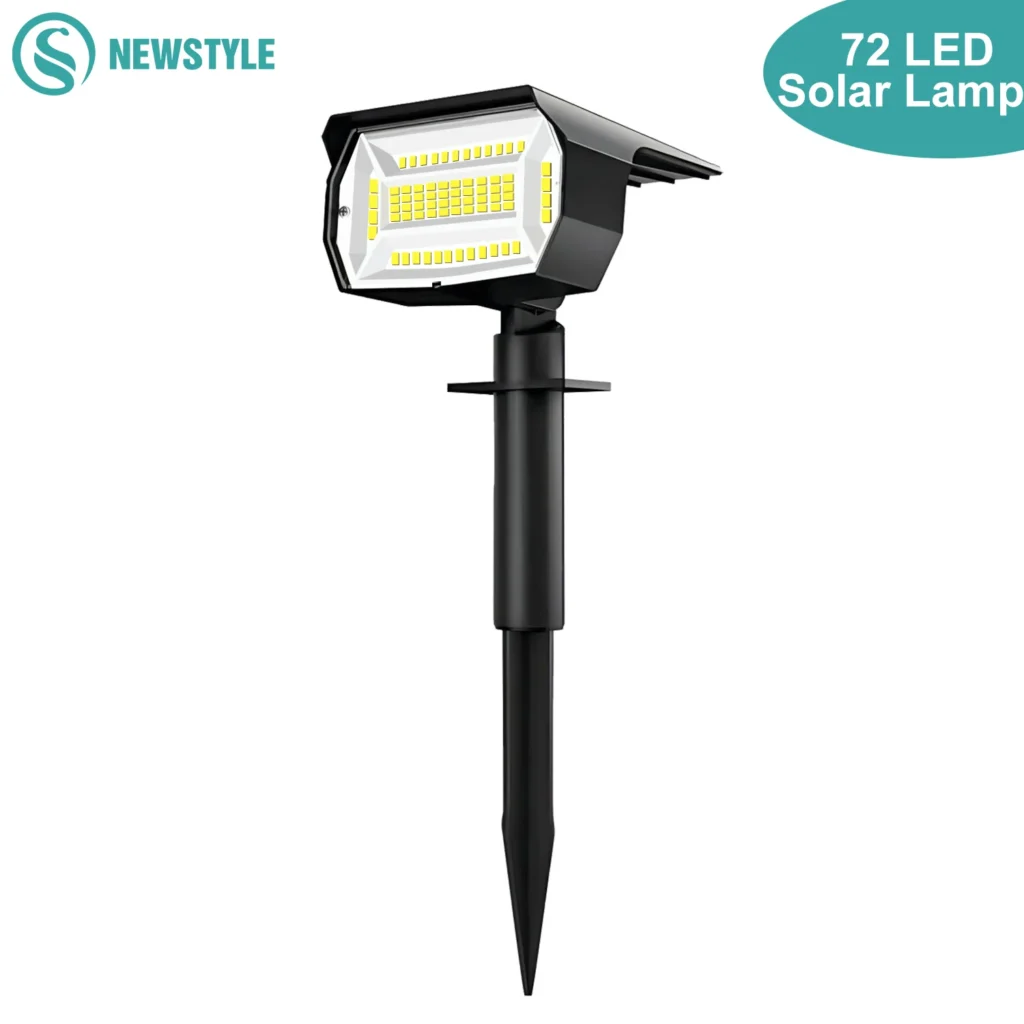
This guide covers one AliExpress listing: a 72-LED solar landscape spotlight, warm white, in the 1-piece variant. It is a buyer-check guide, not a hands-on review — LanPicks has not tested, owned, or measured this light. The direct answer is short: the listing states a solar-powered spotlight with 72 LED beads, a 1500mAh battery, 3.7 […]

This guide covers one AliExpress listing: a SHAHE stainless steel digital caliper, in the 0-150 mm (about 0-5.91 in) range variant. It is a buyer-check guide, not a hands-on review — LanPicks has not tested, owned, or measured with this caliper. The direct answer is short: the listing states a 0-150 mm stainless caliper with […]

This guide covers one AliExpress listing: a vintage racing leather watch strap, in the light brown, 18 mm (about 0.71 in) width variant. It is a buyer-check guide, not a hands-on review — LanPicks has not tested, owned, or measured this strap. The direct answer is short: the strap is a perforated leather racing-style band […]
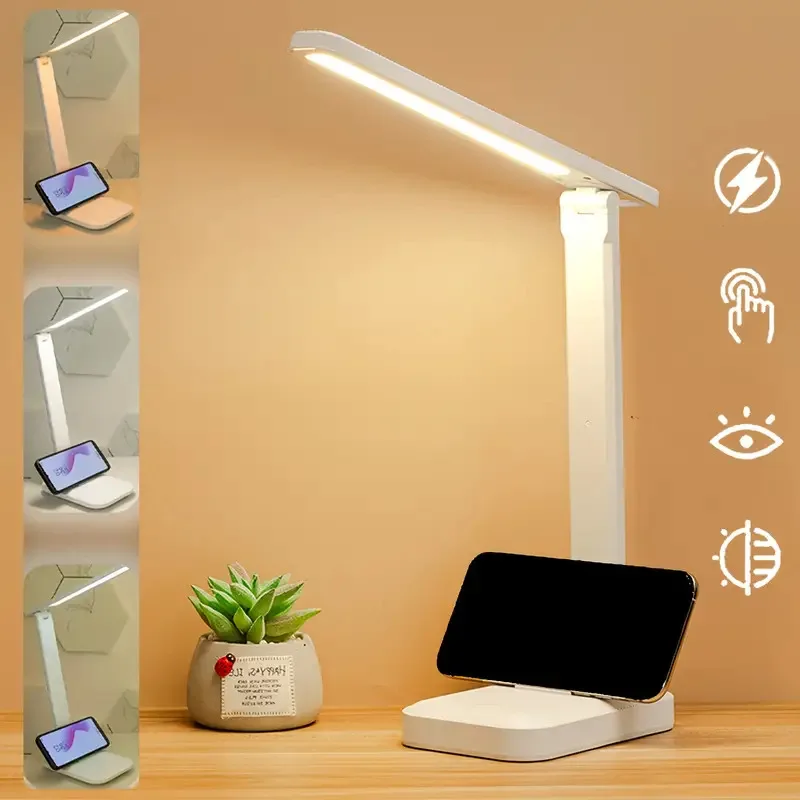
This foldable LED desk lamp is a small, USB-charged task light: it folds flat for travel, stands on a desk for reading or bedside use, and its base holds a phone or tablet. The listing states touch control, stepless dimming, three light modes (cold, warm and mixed), a rechargeable battery, and a nominal voltage of […]
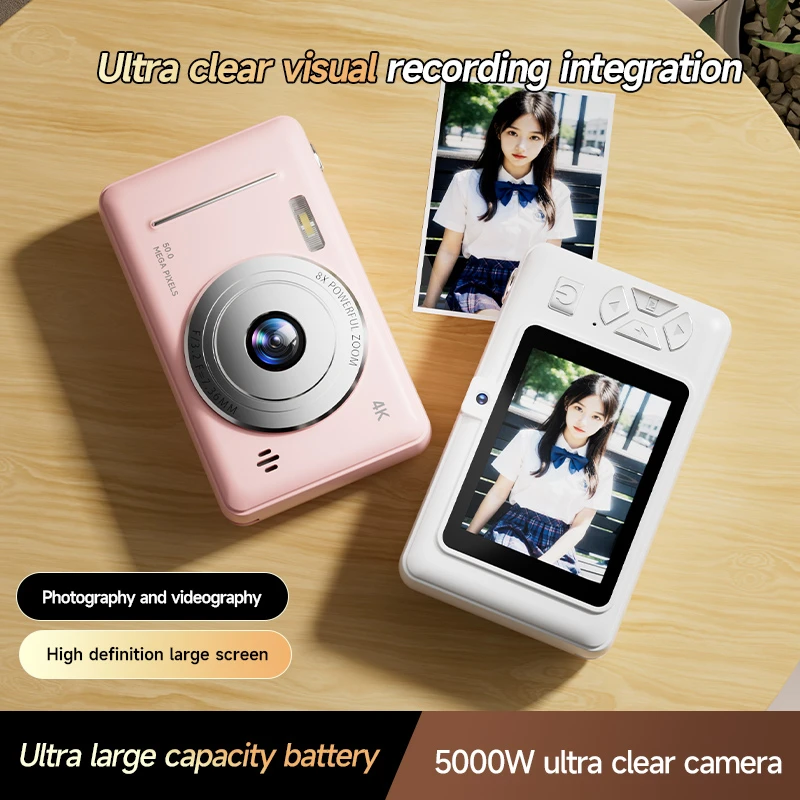
This retro-style CCD camera is a compact point-and-shoot that leans on its look: a pocketable body, a flip-style dual-camera setup, a flash, and SD-card storage. The listing states 4K video at 4096×2160, a 1/1.6-inch CCD sensor, and 2x to 7x optical zoom. It is a reasonable fit if you want a cheap, fun second camera […]