

Smart-Home Lighting Compatibility: The Checks to Run Before You Buy
Hero image: AI-generated editorial illustration; not an exact product depiction.
A smart light works with your home when five things line up: the protocol it speaks, the app and account it needs, the hub or controller in your home, the voice features your platform actually carries, and the exact model you buy. A logo on the box answers only the first of those — and sometimes not even that. Run the five checks below in order, and stop at the first one that fails: that is the part you need to fix, or the reason to pick a different light.
LanPicks has not tested these lights. Every requirement below comes from the maker or standards page named beside it, checked on 21 November 2026. Where a page states a requirement for one model, this guide says so — it does not extend it to the whole brand. If you are still choosing between a strip and a bulb, our LED strip vs smart bulb guide covers that choice. If the light is for a desk rather than a room, start with our monitor light bar vs desk lamp guide — this guide is about whether the light connects to your home, not which form lights the desk.

Contents
The five checks at a glance
Swipe horizontally to compare all columns.
| Check | What it decides | Where to verify it |
|---|---|---|
| 1. Protocol | Whether the light can talk to your home at all | The box and the maker page — the Matter logo plus the Wi-Fi or Thread logo |
| 2. App and account | Whether you can set it up and use its full features | The maker app and the maker page |
| 3. Hub, controller, border router | Whether your home has the hardware the protocol needs | Your platform’s own support page and the maker page |
| 4. Voice features | Which commands and routines actually work | The platform’s own compatibility list and the exact model’s page |
| 5. Exact model | Whether this specific model — not the brand — is supported | The Connectivity Standards Alliance certified-product list and the platform’s list |
Check 1: Protocol — Matter, Thread, Zigbee, Wi-Fi
Start with the protocol, not the logo. Matter is the application layer: the Connectivity Standards Alliance (CSA) states that Matter uses Bluetooth Low Energy for device setup and Wi-Fi, Thread, and Ethernet for connecting devices. Thread is the network underneath — the CSA’s FAQ states that Thread-based devices use the same 802.15.4 radio technology as Zigbee but an IP-based network stack. Thread and Matter are different layers, and a Thread radio alone does not make a device a Matter device.
Zigbee is a separate protocol again. The CSA states there is no native interoperability between Matter and Zigbee devices; Zigbee (and Z-Wave) devices take part in a Matter home only through a compatible bridge. A box that says “Zigbee” and a box that says “Matter” do not describe the same connection, even though both may use the same radio frequency.
A Matter logo means the device is certified — the CSA states that only Matter-certified devices carry the Matter logo, and that certified product models are listed in its Distributed Compliance Ledger (DCL). Treat the logo as a starting point, not a verdict: check the model in the DCL, and check the transport as well. Home Assistant’s own Matter documentation tells buyers to check the packaging for both the Matter logo and either the Wi-Fi or the Thread logo, because the two together say how the device connects.
In practice, check the route documented for the exact light: Wi-Fi through the home network, Zigbee through a supported gateway, or Thread through a supported Thread network. Bluetooth may be used for setup, local control or a manufacturer-specific gateway route; do not infer remote-control support from Bluetooth alone. Thread controller and border-router requirements depend on the platform and control method, including the Apple local-control exception in Check 3. If the transport is unclear, ask for the exact model documentation.
Check 2: App and account
Check which app is needed for initial setup, firmware updates and the features you want. Some devices can be added directly in a supported Matter platform; others need the maker’s app or account for activation or manufacturer-specific functions. Home Assistant documents that Matter can work without a vendor cloud, while some products require a vendor account before Matter is enabled. Do not assume every light needs two accounts.
Write down the required app, sign-in and any cloud dependency from the exact model instructions. Confirm separately where scenes, effects and updates are available; success with basic control does not establish every feature.
Keep the device’s QR or numeric setup code in a safe place. Home Assistant warns that it is needed to commission a reset device again; if it appears only in the packaging or documentation, retain a private backup.
Check the light’s supported Wi-Fi bands and the setup method. Home Assistant recommends placing the commissioning phone on the same 2.4 GHz network for its Wi-Fi Matter setup flow. Treat that as setup guidance for that flow, not proof that every phone on 5 GHz will fail. Follow the maker and platform instructions for the exact device and home network.
Check 3: Hub, controller, or border router
A controller and a border router are different jobs. A Matter controller is the device that adds and controls Matter devices. A Thread border router is the bridge between a Thread mesh and your Wi-Fi or Ethernet. A home can have one without the other — so check that both required functions are present instead of treating them as interchangeable. Read the platform row that matches your home, including the exception column.
Swipe horizontally to compare all columns.
| Platform | What it needs | The exception that matters |
|---|---|---|
| Apple Home | Apple recommends a home hub, but documents local Matter setup and control without one on iPhone with iOS 18 or later. Thread local control also depends on an eligible Thread-enabled iPhone and compatible accessory firmware. | Check Apple’s exact device and software requirements. Its Thread support page describes a Thread-enabled home hub or compatible third-party border router for automations, notifications and remote control; local phone control is a separate case. Do not assume every newer iPhone or every Apple TV model has Thread. |
| Google Home | A Matter-enabled hub is required to add Matter devices and to control them locally and remotely. | For Matter-over-Thread, verify both Google Home Matter hub support and a compatible Thread border router. These are distinct functions; check whether the model supplies both or needs another supported device. Follow Google’s current network requirements, including IPv6. |
| Amazon Alexa | A supported Echo can administer Matter devices for Alexa, as Amazon’s documentation describes. | For Matter-over-Thread, check the exact Thread-enabled Echo or eero model against Amazon’s list. A Matter controller and a Thread border router are different roles. |
| Home Assistant | Home Assistant runs its own Matter controller (the Matter Server app; Home Assistant OS is the recommended installation). | For Home Assistant’s documented Thread setup, use a supported border router and follow its Thread network instructions. Confirm the exact model; a product family name such as Apple TV 4K is insufficient. |
| Philips Hue | Two routes. Via a compatible Hue Bridge: supported Hue lights can be exposed to Matter through the Bridge, and the Bridge and Bridge Pro already support Matter through a software update. Or direct Matter: Matter-enabled Hue bulbs plus a Thread border router. | The Play HDMI sync box and the Tap dial switch dial do not support Matter, and products connected via Bluetooth cannot be used with Matter. Check which route the exact bulb supports and which functions the bridge exposes; neither route promises every Hue-specific feature in another platform. |
| Tuya / Smart Life | For the gateway route documented by Tuya, compatible Zigbee sub-devices connect through a supported gateway into Smart Life. Check the exact light and gateway pairing list. | If that model requires a gateway you do not own, budget for a supported one or choose another light with a documented route you can use. Do not assume an equivalent Wi-Fi variant exists or has identical features. |
One more distinction: a hub you already own may be the wrong kind. A Nest Mini is a Matter controller for Wi-Fi devices but not a Thread border router; a Wi-Fi-only Apple TV 4K is a home hub but not a Thread-enabled one. Match the exact model you own against the platform’s own list — the product name alone is not enough.
Check 4: Voice features
A works-with claim is a reason to verify the exact model and supported functions, not proof that every feature is exposed by the platform. Which device types a platform supports also changes over time: Google’s own Matter page states that the Matter device types Google Home supports are updated at different times and points buyers to its supported-types documentation. Apple’s Home app lists the Matter accessory types it supports — air conditioners, bridges, lights, locks, outlets, switches, thermostats, blinds and shades, and sensors.
Check the feature by name, not the logo. Check on/off, dimming, colour and scenes separately. Manufacturer-specific effects and screen sync can require a different integration or additional hardware: our LED strip vs smart bulb guide covers the separate form-factor decision and some lighting-specific functions. Verify the exact sync route in the maker’s instructions rather than inferring it from Matter support. If a routine or a scene is the reason you are buying the light, confirm that exact feature on the platform’s own list and on the exact model’s page before you buy.
Check 5: The exact model
Matter support is stated per model, not per brand. One bulb in a maker’s range can be Matter-certified while the otherwise identical-looking bulb beside it is not. The CSA states that only Matter-certified devices carry the Matter logo, and its Distributed Compliance Ledger lists the certified product models — verify the model there when the listing is ambiguous.
If a retail listing says “Matter-compatible” but the maker page for that exact model does not, trust the maker page and the DCL. And keep the setup code (Check 2): after a reset, the QR code or numeric code is what lets the device be commissioned again.
Three worked examples
Example 1 — Apple Home with a HomePod mini, buying a Hue bulb. Two routes work. Pair a supported Hue light to a compatible Hue Bridge and use the supported Matter bridge integration, or pair a Matter-enabled Hue bulb directly over Thread — the HomePod mini is a Thread border router, so no Bridge is needed for the direct route. Apple also documents local Thread control on eligible Thread-enabled iPhones with supported software and accessory firmware. That is distinct from the requirements for automation or remote control; check the exact Apple setup.
Example 2 — Google Home with only a Nest Mini, buying a Matter bulb. A Nest Mini alone does not provide a Thread border router. For a Matter-over-Thread bulb, check the supported Google Home hub and border-router combination; one supported device may provide both roles. Your options are to add a Thread border router or choose a Matter-over-Wi-Fi bulb instead. Also check that IPv6 is enabled on your home network — Google’s own page states Matter will eventually fail without it.
Example 3 — Smart Life with no gateway, buying a Tuya bulb. For a bulb whose instructions require a Zigbee gateway for Smart Life, confirm the supported gateway before purchase. If you do not want that hardware, choose a different light with an explicitly documented setup route; do not assume another protocol variant is interchangeable.
If it still will not pair
Use the troubleshooting steps for the platform and model you actually have; these checks do not replace their setup instructions.
- Follow the exact Wi-Fi band and commissioning instructions. Home Assistant recommends the same 2.4 GHz network for its Wi-Fi Matter setup; do not turn that recommendation into a universal rule for all platforms.
- Check that IPv6 is enabled on the home router — Google’s Matter page states Matter will eventually fail without it.
- Check for a firmware update. Apple states that a battery-powered accessory may need a manufacturer firmware update to work with iOS 18.
- Check the setup code is the one for this device, not another unit’s code.
- If the light is already on another platform, check the supported multi-admin sharing process before considering a reset: the CSA states Matter’s multi-admin support lets you share devices across platforms, and Apple’s page states that a previously paired accessory can be added from any app that supports Matter.
FAQ
Does a Matter logo guarantee a light works with my smart home?
No. The logo means the device is Matter-certified. You still need a Matter controller your platform supports, the required network route and a platform that supports that device type and feature. Thread border-router requirements depend on the setup; Apple’s documented local control on an eligible Thread-enabled iPhone is a separate case.
Do I need a hub for Matter?
It depends on the platform and the transport. With Apple Home, an iPhone on iOS 18 or later can add and control Matter accessories without a home hub, and an eligible Thread-enabled iPhone can control supported Thread accessories locally without one. Google Home requires a Matter-enabled hub. For other Thread setups, including the Google Home and Home Assistant routes discussed here, check their border-router requirements. Do not confuse the local iPhone exception with remote-control or automation support.
Is Thread the same as Matter?
No. Thread is the low-power mesh network; Matter is the application layer that runs on top of it — and on Wi-Fi and Ethernet. A Thread radio alone does not make a device a Matter device, and Thread and Zigbee, while they share the same radio technology, are different protocols.
Can a Zigbee light join a Matter home?
Only through a compatible bridge. There is no native interoperability between Matter and Zigbee. A Hue Bridge is one such bridge for Hue lights; it exposes them to Matter while they keep speaking Zigbee to the Bridge.
Will my voice assistant run every feature of the light?
Not necessarily. Check the feature by name on the platform’s own compatibility list and on the exact model’s page. Verify basic controls, colour, scenes and screen sync separately. Support for a device type does not establish every manufacturer-specific feature.
Sources
- Amazon — Connect your device to Alexa with Matter: controller and Thread border-router roles
- Connectivity Standards Alliance — Matter FAQ: what Matter runs on, bridges for Zigbee, multi-admin, certification and the Distributed Compliance Ledger
- Connectivity Standards Alliance — Build with Matter: Matter is deployed across Apple Home, Google Home, Amazon Alexa, Samsung SmartThings and Home Assistant
- Apple Support — Pair and manage your Matter accessories: iOS 18 and later without a home hub, iPhone 15 Pro and later for Thread, and the Thread-hub footnote
- Apple Support — “Thread Border Router Required” alert: automations, notifications and remote control need a Thread-enabled home hub or third-party border router; the Thread-enabled device list
- Philips Hue — Philips Hue and Matter: Bridge and Bridge Pro support Matter; direct Matter with Matter-enabled bulbs and a Thread border router; the exceptions
- Google Support — Prepare your smart home for Matter: hub requirement, Wi-Fi-only vs Wi-Fi and Thread hubs, IPv6
- Home Assistant — Matter integration: its own Matter controller, both logos on the box, keep the setup code, Thread border router examples
- Tuya Developer — Wireless Zigbee Gateway: Zigbee sub-devices connect through a gateway into the Smart Life app
LanPicks may earn a commission if you buy through links on this page, at no extra cost to you. See the Affiliate Disclosure. LanPicks has not tested these lights; all requirements above come from the maker and standards pages listed in Sources, checked on 21 November 2026.
Related Posts
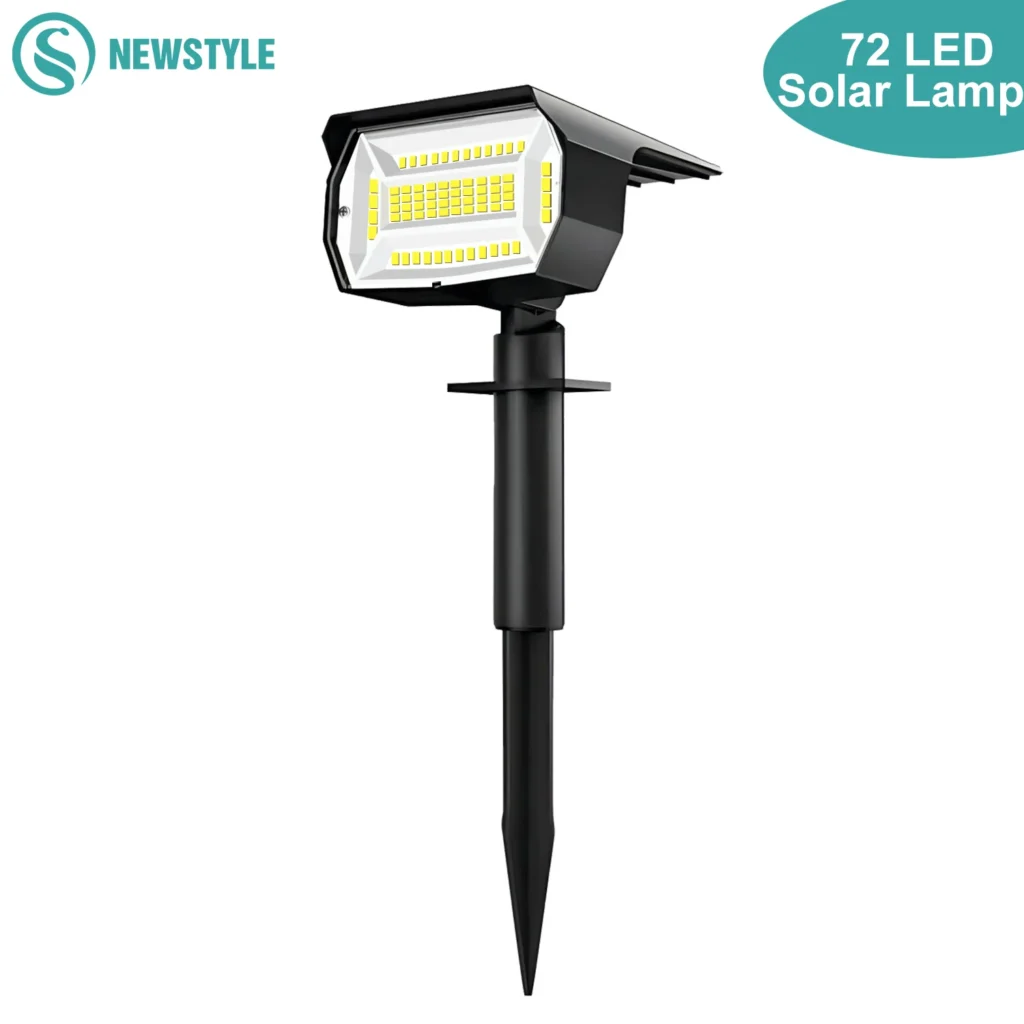
This guide covers one AliExpress listing: a 72-LED solar landscape spotlight, warm white, in the 1-piece variant. It is a buyer-check guide, not a hands-on review — LanPicks has not tested, owned, or measured this light. The direct answer is short: the listing states a solar-powered spotlight with 72 LED beads, a 1500mAh battery, 3.7 […]

This guide covers one AliExpress listing: a SHAHE stainless steel digital caliper, in the 0-150 mm (about 0-5.91 in) range variant. It is a buyer-check guide, not a hands-on review — LanPicks has not tested, owned, or measured with this caliper. The direct answer is short: the listing states a 0-150 mm stainless caliper with […]
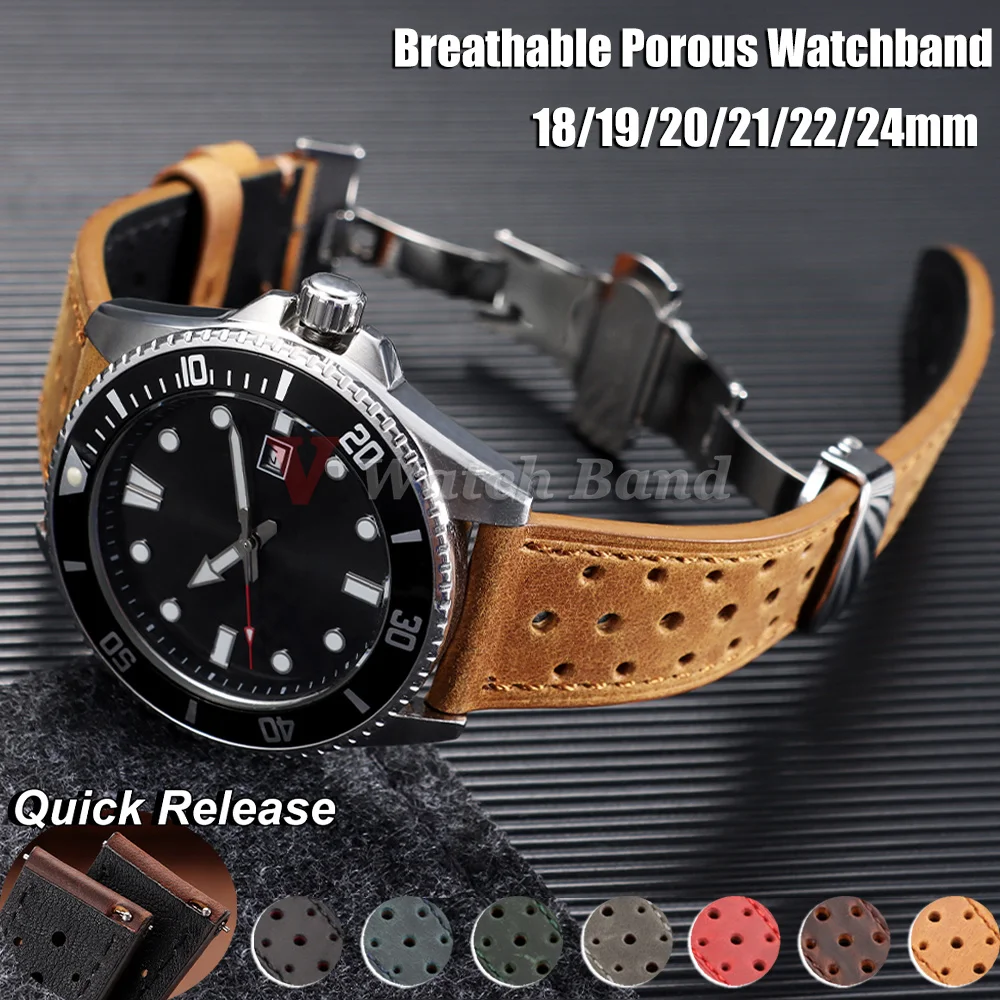
This guide covers one AliExpress listing: a vintage racing leather watch strap, in the light brown, 18 mm (about 0.71 in) width variant. It is a buyer-check guide, not a hands-on review — LanPicks has not tested, owned, or measured this strap. The direct answer is short: the strap is a perforated leather racing-style band […]
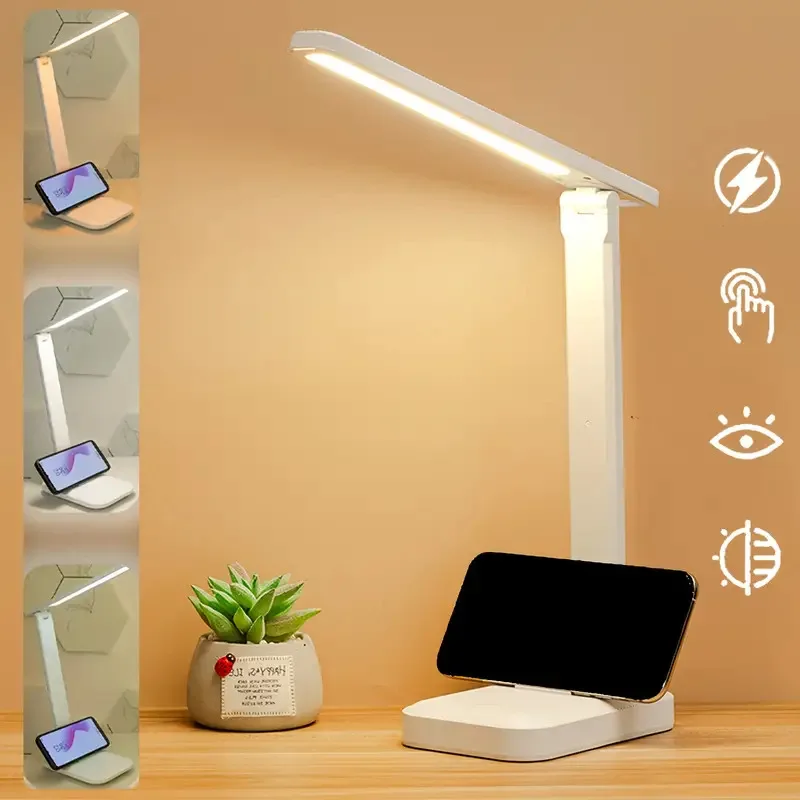
This foldable LED desk lamp is a small, USB-charged task light: it folds flat for travel, stands on a desk for reading or bedside use, and its base holds a phone or tablet. The listing states touch control, stepless dimming, three light modes (cold, warm and mixed), a rechargeable battery, and a nominal voltage of […]
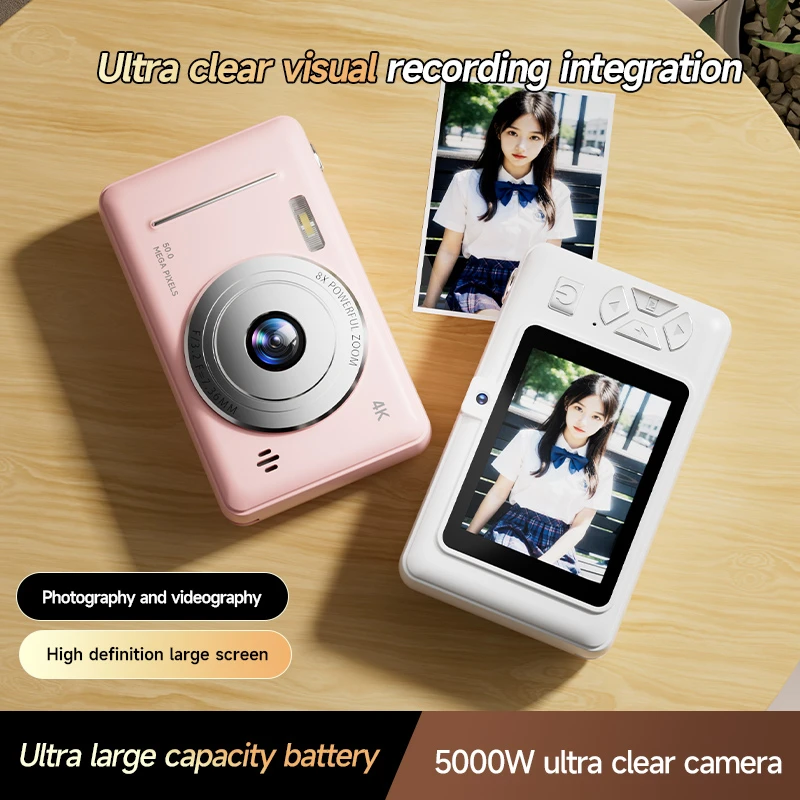
This retro-style CCD camera is a compact point-and-shoot that leans on its look: a pocketable body, a flip-style dual-camera setup, a flash, and SD-card storage. The listing states 4K video at 4096×2160, a 1/1.6-inch CCD sensor, and 2x to 7x optical zoom. It is a reasonable fit if you want a cheap, fun second camera […]