

75% vs TKL Keyboards: Which Layout Fits Your Desk?
Both the 75% and the TKL drop the number pad, and both keep a function row and dedicated arrow keys. But they do not keep the same keys in the same way: a 75% usually keeps fewer dedicated navigation keys than a TKL, and how many it keeps — and where they sit — varies by model. So the choice is about both the keys you get and how they are arranged, and what that costs you in desk space, in finding keys by touch, and in keycap choice.
Short answer: pick the TKL if you reach for Home, End, Page Up and Page Down by touch, swap keycap sets often, or want spacing close to a full-size board — it may feel more familiar if you come from a classic full-size board. Pick the 75% if your desk is tight and you want a compact option that keeps the function row and arrow keys. In the two models measured for this guide, the 75% is about 1.2 inches narrower — a narrower case frees desk space, but it does not guarantee your mouse hand shifts by that exact amount. If you type numbers all day, pick neither: both layouts drop the numpad.
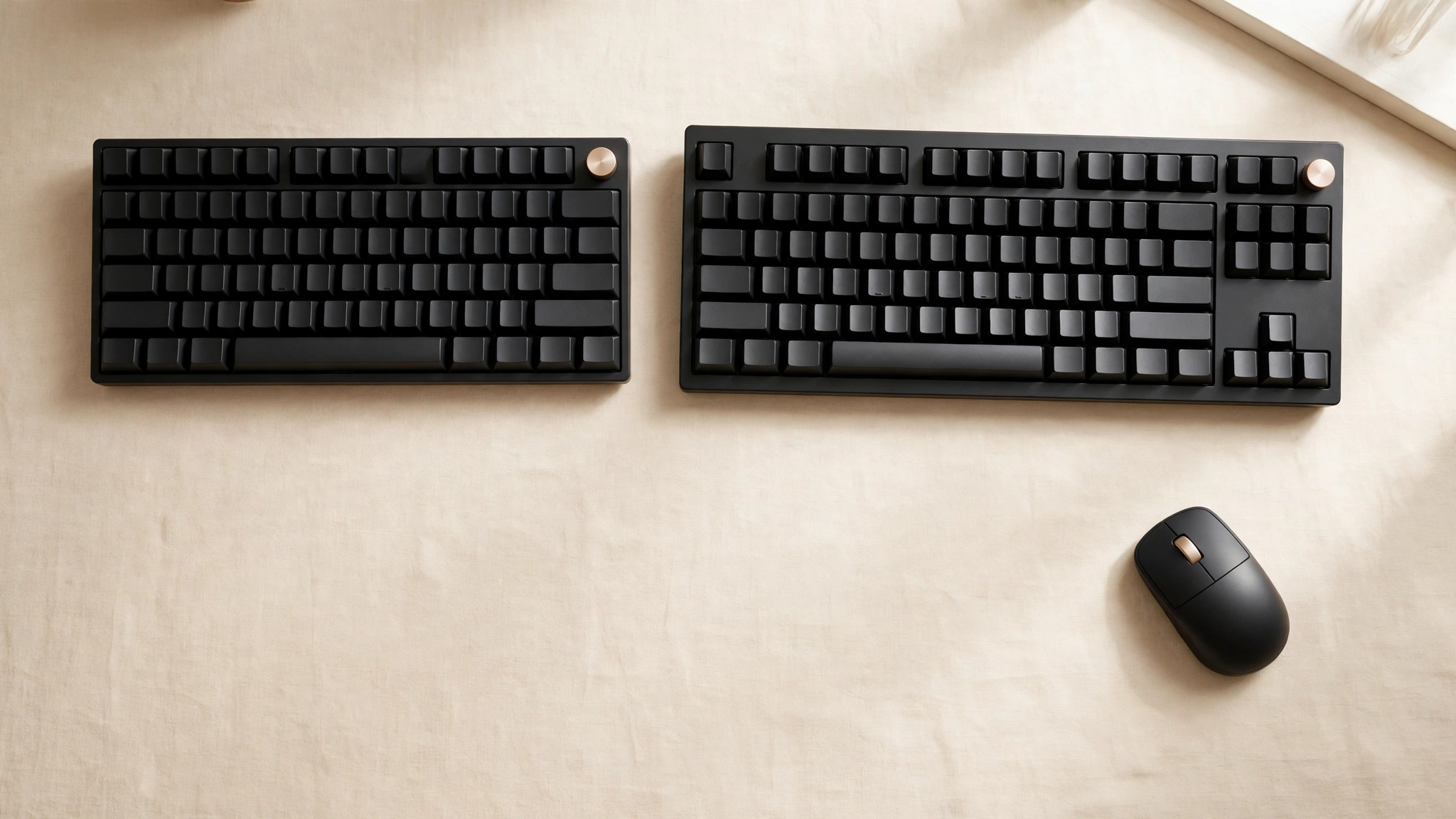
How this guide was put together: LanPicks did not test keyboards hands-on for this article. Layout descriptions and dimensions are based on published size guides and manufacturer specifications, cross-checked on 12 November 2026. Widths are representative examples, not a universal standard — actual models vary, so check the model you own. The hero image is an AI-generated editorial illustration, not a photo of a real product. Our editorial policy explains how we research and write guides.
In this guide
Quick Decision
Choose a TKL if you use the navigation cluster constantly, or are coming from a full-size keyboard and want spacing close to what you already know. The layout is the closest of the compact options to a classic full-size board, so it may feel more familiar — how quickly it feels natural still varies by person.
Choose a 75% if your desk is tight, you sweep the mouse wide, or you want a compact option that keeps a function row and arrow keys. Your fingers may need time to learn the tighter spacing, and how long that takes varies by person.
Choose neither if you enter numbers for a living — neither layout has a number pad, and a full-size board or a separate USB number pad is the honest answer for that workflow.
What Each Layout Keeps
A TKL — tenkeyless, sometimes sold as 80% — is the classic example of a full-size keyboard with the number pad removed. A typical example keeps about 87 keys in the ANSI (US) layout, 88 in ISO (European): the full function row, the complete six-key navigation cluster, and isolated arrow keys, in positions close to a full-size board. Actual models vary, so check the layout of the model you are considering. The main change is how far your mouse hand has to reach.
A 75% keeps fewer dedicated keys than a TKL — about 81 to 84 of them in common examples — in a noticeably smaller body. It keeps a function row and arrow keys, and it keeps some navigation keys, but how many, and where they sit, varies by model. In the common compact example, the gaps between key groups are removed and the navigation cluster is folded into a single column on the right edge; other 75% designs are exploded layouts that keep small gaps between groups, closer to a TKL in feel. A few keys that a TKL keeps dedicated — most often Insert, Scroll Lock and Pause — move to a function layer on many 75% boards, or disappear from the board entirely. Which keys are dedicated and which move depends on the model, so check the layout of the board you are considering rather than assuming.
The percentage names are rounded shorthand, not measurements: a 75% board is not literally 75% of anything. What the labels describe is how much of a full-size board’s key set survives, and how tightly it is packed.
Key Placement and Spacing
The difference between these two layouts is spacing, and spacing is what your fingers feel. A classic TKL keeps the full-size geometry: gaps separate the function row from the main block, the navigation cluster from the main block, and the arrow keys from everything else. Those gaps are landmarks. Your hand finds Home or the arrow keys by touch because there is empty space around them. That is the classic TKL arrangement; individual models vary.
In the common compact 75% example, those landmarks are removed to save width. The function row sits directly above the main block, the navigation keys run down a single column on the right edge, and the arrow keys tuck into the bottom-right corner of the main block, touching the modifiers beside them. But that is one common arrangement, not the rule: exploded 75% designs keep gaps between groups, and the navigation keys may sit in a different arrangement depending on the model. And the keys are not quite the same — a 75% usually has fewer dedicated navigation keys than a TKL, with the rest moved to a function layer. What changes is both the positions and the number of dedicated keys.

The function row. Both layouts keep F1 through F12. On a classic TKL the row is spaced in groups of four, with Escape separated at the left and Print Screen, Scroll Lock and Pause grouped at the right — the arrangement of a full-size board. On a compact 75% the F-keys usually sit closer together, often with the groups touching. Some 75% boards are exploded designs that keep small gaps between the groups, so the tightness varies by design; the row itself is present on both layouts.
The navigation cluster. This is the biggest practical difference. A classic TKL keeps the full six-key block — Insert, Home, Page Up, Delete, End, Page Down — separated from the main block by a gap, in the place your fingers expect from a full-size board. In the common compact 75% example, that block is folded into one vertical column on the right edge, usually Delete, Home, Page Up and Page Down, and Insert moves to a function layer — but the arrangement varies by model, and some 75% boards keep a different set of dedicated navigation keys. If you press Insert, Print Screen or Scroll Lock often, that matters: on a 75% those keys may take two keystrokes instead of one, or need remapping — check the board’s keymap before buying.
The arrow keys. A classic TKL isolates them in the familiar inverted-T shape with space around them. In the common compact 75% example, they sit tucked into the bottom-right corner of the main block, directly against the right Shift and the modifiers — though exploded designs give them more room. That closeness can cause mis-hits at first — a right Shift press that lands on an arrow key — and how long it takes to adjust varies by person. If you lean on the arrows constantly for text editing, the TKL’s separation may stay easier to use by touch.
In short: a TKL buys familiarity and find-by-touch keys with width. A 75% buys width with a tighter layout that asks more of your fingers. The trade is both spacing and keys: a 75% usually keeps fewer dedicated navigation keys, and where the remaining keys sit varies by model.
Real Dimensions Vary
Published guides give illustrative widths, not averages. One example TKL measures about 14.0 inches (35.5 cm) wide and one example 75% about 12.6 inches (32 cm) — those two examples differ by about 1.4 inches, roughly the width of two keys, but they are examples, not a dataset, and no average can be derived from them.
The figure this guide uses comes from two real models, measured on the same axis. The Keychron Q1, a 75% board, measures 327.5 mm (12.9 in) long according to Keychron’s own product page — wider than the example 75% width above, because the case extends past the keys. The Keychron K8 Ultra 8K, an 80% TKL, measures 359.2 mm (14.1 in) long on Keychron’s product page. Both figures are the horizontal width of the board, even though Keychron lists the Q1’s as “Length” — it is the same left-to-right measurement as the K8 Ultra’s 359.2 mm. Between these two models the gap is 359.2 − 327.5 = 31.7 mm, about 1.2 inches. Wherever this guide says a 75% is about 1.2 inches narrower, that figure is the gap between these two verified models — not an average across all boards. The lesson is to check the model’s own specification sheet, not the family label, before deciding whether a board fits your desk.
Depth differs less than width. One example TKL runs about 4.8 inches (12.2 cm) deep and one example 75% about 4.1 inches (10.4 cm) — illustrative figures that vary with the case. And case width is not the same as the width of the keys alone: a board’s case can extend past its keys, so always use the manufacturer’s case dimensions — the Q1’s 327.5 mm is a case measurement. If your desk space is tight, measure the case dimensions on the manufacturer’s page, then measure your desk — our desk mat size guide shows how to measure usable width and depth before buying anything for the desk.
Gaming and Work Scenarios
Mouse room. Removing the number pad already brings the mouse closer to the centre on both layouts, which eases shoulder reach during long sessions. A 75% can add more room — in the two models measured for this guide, about 1.2 inches — useful if you play with low sensitivity and sweep the mouse wide, or if your desk is narrow. But a narrower case frees desk space; it does not guarantee your mouse hand shifts by that exact amount, since hand position depends on where you place the board and the mouse. That is a matter of desk space, not speed: the layout itself does not set input speed, and neither do switches or connection type on their own — latency depends on the controller, firmware, scan rate and polling, and comparing it needs measured data. No speed test was done for this guide, and a narrower board does not make a keyboard faster.
Heavy document and spreadsheet work. If Home, End, Page Up and Page Down get used dozens of times an hour — editing long documents, moving through spreadsheets, navigating code — the TKL’s separate navigation cluster may feel familiar sooner if you come from a full-size board, and stays easier to find by touch. How quickly it feels natural varies by person. A 75% can do the same work, but the compressed column asks more of your fingers, and Insert on a function layer slows the occasional Insert press.
Games that bind navigation keys. Some games use Home, End or Page Up and Page Down as binds. On a classic TKL those keys are dedicated and easy to hit mid-game. On a 75% they sit in the right column or on a function layer, depending on the model, which is workable but less forgiving under pressure. If your bindings live on those keys, that is a point for the TKL.
Moving between desks. A 75% takes less space in a bag and on a shared desk, which suits a board that travels between home and office. A TKL is the more familiar choice if the board will mostly stay in one place and you want spacing close to what you already know.
Planning the whole desk around one of these boards? Measure the space first: our clean gaming desk setup guide walks through measuring your desk and placing the keyboard, mouse and monitor before you buy anything.
Compatibility Considerations
Keycap sets. Keycap fit needs checking on both layouts. A TKL commonly uses standard sizes on the bottom row and right column, but that is not a guarantee — check the set against your board’s sizes before buying. Many 75% boards use non-standard sizes on the right column — a 1.75-unit Right Shift and 1-unit modifiers are common, but the exact sizes vary by model — which means a set that looks compatible can leave you short of a correctly sized modifier. Before buying keycaps for either layout, check the stem type, the ANSI or ISO standard, each key’s width, and the row profile; a set that lists “75% support” is a starting point, not proof it fits your board. Most keys are shared between the two layouts; the differences sit in the right column and bottom row.
ANSI and ISO are different questions. Both layouts come in ANSI (US) and ISO (European) versions, and the two differ in the shape and size of the Enter key and the left Shift — a keycap set made for one may not fit the other. Check which version your board is before ordering caps, whatever the layout.
Switches are a separate choice. The switch is only one part of how a keyboard feels to type on. The mount, plate, keycaps, stabilizers and case all shape the feel as well, so two boards with the same switches can still feel different under the fingers. Choose the layout for the keys and the space; choose the switches — and the rest of the build — for the feel. For the feel of each switch family — smooth, bump, or bump with a click — see our linear vs tactile vs clicky switches guide.
The function layer. On many 75% boards, Insert, Scroll Lock and Pause live on a function layer, reached by holding Fn. That is fine if you rarely need them, but check the board’s manual or keymap before buying if you do. Some 75% boards let you remap those keys; some do not. A classic TKL keeps them dedicated, so there is nothing to remap.
Which Layout Fits You
Match your own use to the row that sounds most like you. If two rows pull in opposite directions, the one about the keys you press every day should win over the one about the space you save — a board that fights your fingers costs more than an inch of desk.
Swipe to compare all columns →
| Your setup | Pick | Why |
|---|---|---|
| Edit documents or spreadsheets and reach for Home, End, Page Up and Page Down by touch | TKL | On a classic TKL, the full navigation cluster sits apart from the main block, so you can find it without looking |
| Have a tight desk and sweep the mouse wide | 75% | About 1.2 in narrower in the verified-model pair; a narrower case frees desk space without guaranteeing the same shift in hand position |
| Swap keycap sets often | TKL | Usually fewer special sizes to check on a TKL — but check every set (stem, ANSI/ISO, key widths, row profile) against your board |
| Press Insert regularly or rebind it in games | TKL | Dedicated keys; many 75% boards move Insert to a function layer |
| Want a compact board that keeps the function row and arrow keys | 75% | It keeps both in a compact body |
| Are coming from a full-size keyboard and want spacing close to what you know | TKL | Spacing close to full-size, minus the number pad |
| Type numbers all day | Neither — full-size or a separate number pad | Both layouts drop the number pad |
| Carry the keyboard between desks | 75% | Smaller footprint takes less bag and desk space |
Still unsure? The space question is easy to test before spending anything: lay removable tape on your desk in the outline of the actual candidate boards you are considering — their real width and depth from the manufacturer’s pages, not the example figures above — put your mouse where it normally sits, with room for its full footprint, and use the desk normally for a while. If the narrower outline still leaves comfortable mouse room, the 75% fits your desk on space. But tape only tests space, not how the keys feel: a different layout can still help even if the tape test feels tight, and a board that fits on paper can still feel wrong under your fingers. Measure the usable width and depth first, as in our desk mat size guide, and treat the tape outline as a space check — not the whole decision.
FAQ
Does a 75% keyboard have fewer keys than a TKL?
Usually, yes — about 81 to 84 keys in common 75% examples, against a classic TKL’s 87 in the ANSI layout. The keys that go missing are most often Insert, Scroll Lock and Pause, which move to a function layer or off the board. The function row and the arrow keys stay on both layouts.
Is a 75% better for gaming?
Not inherently. The layout does not set input speed, and neither do switches or connection type on their own — latency depends on the controller, firmware, scan rate and polling, and comparing it needs measured data; no speed test was done for this guide. What a 75% can give you is more mouse room — in the two models measured for this guide, about 1.2 inches — which helps wide, low-sensitivity sweeps, though a narrower case does not guarantee your hand shifts by that amount. What a TKL gives you is dedicated navigation keys, which helps if your game binds Home, End or Page Up and Page Down. Pick by which of those you actually use.
What should I check before buying keycaps for a 75%?
Check both layouts against the exact board: stem type, the ANSI or ISO standard, each key’s width and the row profile. Many 75% boards use a 1.75-unit Right Shift and 1-unit modifiers, but the exact sizes vary by model, so confirm the stem type, the ANSI or ISO standard, each key’s width and the row profile — a set that lists “75% support” is a starting point, not proof it fits your board. A TKL commonly uses standard sizes, but that is not a guarantee either; check the set against your board before buying.
Do I lose the function row on a 75%?
No. Both the 75% and the TKL keep F1 through F12. The layout that drops the function row is the 65% — it keeps the arrow keys but moves the function keys to a layer. See our mechanical keyboard sizes guide for the full comparison.
Which should I buy first?
A TKL, if you want spacing close to what you already know — it may feel familiar sooner if you come from a full-size board, though how quickly varies by person. A 75%, if desk space is tight and you are willing to give your fingers time to learn the tighter spacing. If you are still torn, the tape-outline test in the section above checks the space question — it does not test how the keys feel.
Conclusion
The 75% and the TKL are close cousins, not the same keyboard: the TKL keeps a full set of dedicated keys in classic positions, while the 75% usually keeps fewer dedicated navigation keys and arranges the rest more tightly — and both the count and the arrangement vary by model. The TKL charges you desk width for that familiarity — in the two models measured for this guide, about 1.2 inches. The 75% charges you adjustment time and a compressed navigation cluster, and pays you back in mouse room and a smaller footprint. Neither is the better layout — only the one that matches how you use the keys.
Once you have chosen, measure your desk before you buy: our desk mat size guide shows how to measure the width and depth your keyboard and mouse need, so the layout you picked actually fits the desk it will live on.
Sources
- Keychron. “Keyboard Size and Layout Buying Guide.” https://www.keychron.com/blogs/news/keyboard-size-layout-buying-guide
- Keychron. “Keychron Q1 QMK Custom Mechanical Keyboard.” https://www.keychron.com/products/keychron-q1
- Keychron. “Keychron K8 Ultra 8K Wireless Custom Mechanical Keyboard.” https://www.keychron.com/products/keychron-k8-ultra-8k-wireless-custom-mechanical-keyboard
- ClickyBoard. “TKL vs 75% Keyboards: Which Compact Layout Is Right for You?” https://clickyboard.com/tkl-vs-75-keyboards/
- MechKeysHub. “TKL vs 75% Keyboard: Which Layout Should You Actually Buy?” https://www.mechkeyshub.com/compare/tkl-vs-75-keyboard.html
- Product Bible. “Keyboard Sizes: 60%, 65%, 75%, TKL & Full Size Compared.” https://productbible.com/keyboard-sizes
- Keyboard Simulators. “75% vs TKL Keyboard: Size, Spacing and Which to Buy.” https://www.keyboardsimulators.com/layouts/compare/75-vs-tkl
- WorkCocoon. “Keyboard Size Chart: All Layouts and Dimensions (2026).” https://www.workcocoon.com/guide/keyboard-size-chart
Dimensions cross-checked against the sources above on 12 November 2026. Widths are representative examples compiled from these sources, not a universal standard; individual models vary.
Related Posts
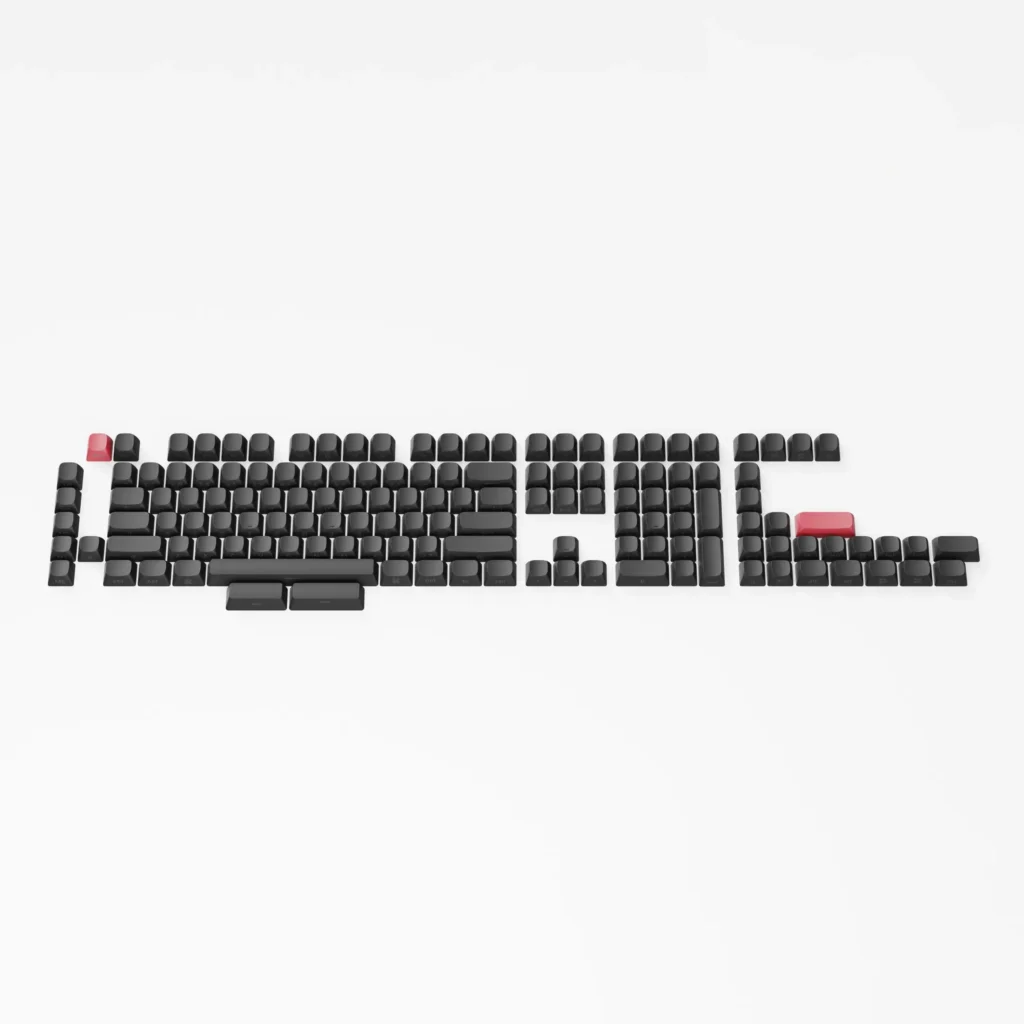
This is a keycap set only: black keycaps, no keyboard and no switches. It is worth buying only if your board takes MX-style stems, uses an ANSI layout, and matches the key widths and rows in the set. Keychron describes the set as a full set of 141 keys; the AliExpress listing does not confirm […]

A gaming mouse that fits your hand disappears during play; one that does not keeps reminding you it is there. Fit comes down to two numbers — your hand length and width — and one habit — your grip. Measure both, compare them against the maker’s published dimensions, and use the starting ranges in this […]

AI-generated editorial illustration; not an exact product depiction. Quick Decision Pick a 2.4 GHz wireless mouse if you want no cable and play on a PC with a free USB port for the receiver. Pick wired if you never want to think about charging, or you are shopping on a tight budget. Use Bluetooth mainly […]

A mechanical keyboard switch is the mechanism under each key. Most common mechanical switches fall into one of three feel families — linear, tactile, or clicky — and the family is about what a keypress feels like under your finger. Force and travel are a separate decision: two switches in the same family can press […]
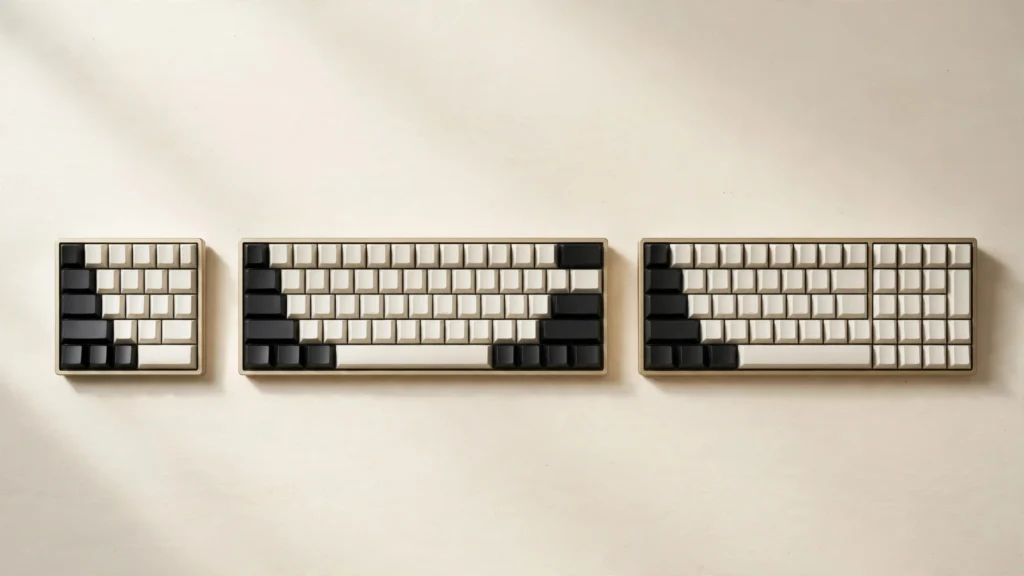
Shopping for a mechanical keyboard starts with a confusing wall of labels: 60%, 65%, 75%, TKL, full-size. They look like precise measurements, but they are not. They are rough shorthand for how many keys a layout keeps compared with a standard full-size board — and, more usefully, which groups of keys you give up. Short […]